Category: SMB Security

Cybersecurity guides for small and medium businesses

  • How to Implement Zero Trust Security for Small Business: A Step-by-Step Guide (2026)

    How to Implement Zero Trust Security for Small Business: A Step-by-Step Guide (2026)

    Quick Answer: Implementing zero trust security for small business starts with identity verification (hardware security keys like YubiKey 5 NFC), network segmentation (next-gen firewalls), and enforcing least-privilege access. Most SMBs can deploy a basic zero trust framework in 60-90 days for $5,000-$15,000, with immediate ROI through reduced breach risk and insurance premiums.

    This article contains affiliate links. PacketMoat may earn a commission at no extra cost to you when you purchase through these links. This helps support our cybersecurity research and content creation.

    Executive Summary: The Business Risk of Trusting Your Network

    Traditional perimeter security assumes everything inside your network is safe. That assumption is killing small businesses. When an attacker breaches your firewall—through a phished employee, compromised vendor, or unpatched vulnerability—they have free rein to move laterally across your entire network.

    Zero trust security operates on a simple principle: trust nothing, verify everything. Every user, device, and application must prove its identity before accessing resources, regardless of network location. For SMBs, this isn’t paranoia—it’s survival. The average cost of a data breach for small businesses now exceeds $120,000, and 60% of breached SMBs close within six months.

    Why SMBs Are Prime Targets for Network-Based Attacks

    Cybercriminals target small businesses because they have valuable data (customer records, financial information, intellectual property) but typically lack enterprise-grade security. The 2023 Verizon Data Breach Investigations Report found that 43% of cyberattacks target small businesses, yet only 14% are adequately prepared to defend themselves.

    The attack pattern is predictable: compromise one employee account through phishing, use those credentials to access the network, then move laterally to find high-value targets. Traditional perimeter security can’t stop this—once the attacker is inside, they’re trusted by default. The 2022 LastPass breach demonstrated this perfectly: attackers compromised a single DevOps engineer’s home computer, then used that access to eventually reach the company’s production environment.

    For SMBs, the risk is amplified by remote work. Your network perimeter now extends to every employee’s home office, coffee shop, and hotel room. Without zero trust controls, each remote connection is a potential entry point.

    Step 1: Implement Strong Identity Verification

    Zero trust starts with identity. You cannot verify access without first proving who (or what) is requesting it. This means moving beyond passwords to multi-factor authentication (MFA) using hardware security keys.

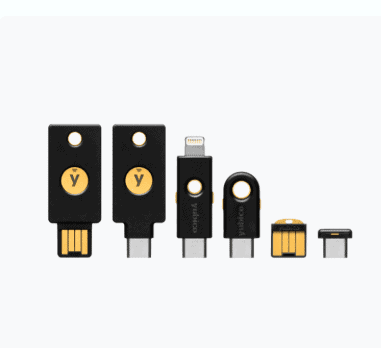
    Deploy YubiKey 5 NFC devices to every employee. Unlike SMS-based MFA (which can be intercepted), hardware keys provide phishing-resistant authentication. The YubiKey 5 NFC works with virtually every business application—Microsoft 365, Google Workspace, password managers, VPNs—and costs under $50 per employee. For USB-C devices, consider the YubiKey 5C NFC.

    Configure your identity provider (Azure AD, Okta, Google Workspace) to require hardware key authentication for all users. Set conditional access policies that block login attempts from unrecognized devices or suspicious locations. This single step eliminates 99.9% of automated credential stuffing attacks.

    For detailed deployment guidance, see our Phishing-Proof Your Remote Team: Why the YubiKey 5 NFC is Mandatory for SMB Security (2026 ROI Guide) which includes ROI calculations and implementation timelines.

    Step 2: Deploy Network Segmentation and Microsegmentation

    Traditional networks are flat—once you’re in, you can access everything. Zero trust requires segmentation: dividing your network into isolated zones with strict access controls between them.

    Start with a next-generation firewall that supports application-level inspection and identity-based policies. For SMBs with 25-100 employees, the Firewalla Gold Plus offers an excellent balance of capability and affordability. It provides VLAN segmentation, intrusion detection, and granular access controls without requiring a dedicated security team.

    For businesses with more complex requirements or multiple office locations, the Ubiquiti Dream Machine Pro delivers enterprise-grade features at SMB pricing. It includes built-in controller software for managing multiple sites and supports advanced segmentation policies.

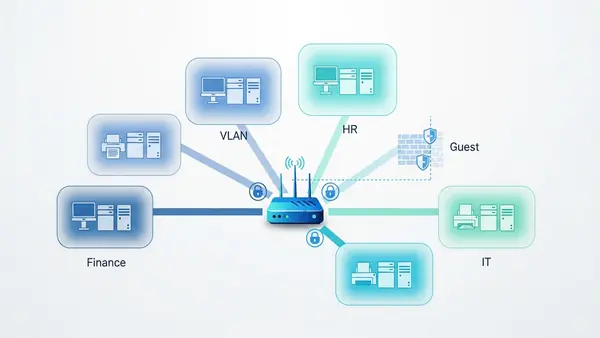
    Create separate network segments for: employee workstations, guest WiFi, IoT devices (printers, security cameras), servers, and any industrial/operational technology. Configure firewall rules so that each segment can only access the specific resources it needs. Your reception area printer doesn’t need access to your accounting server.
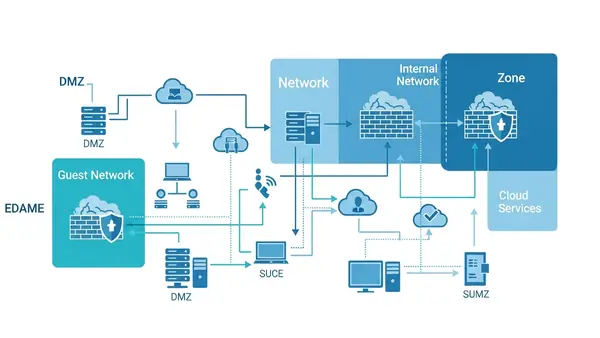
    network diagram showing segmented business network with firewall separating different zones

    Step 3: Enforce Least-Privilege Access Controls

    Zero trust requires that users and devices receive the minimum access necessary to perform their functions—nothing more. This limits the damage from compromised accounts.

    Audit your current access controls. How many employees have admin rights they don’t need? How many service accounts have overly broad permissions? Start by removing local administrator privileges from user workstations. Our guide on Stop Browsing as Administrator: The #1 Security Mistake Windows Users Make explains why this is critical and how to implement it without disrupting productivity.

    Implement role-based access control (RBAC) in your core business systems. Define roles based on job functions (sales, accounting, IT, management) and assign permissions to roles rather than individuals. When someone changes positions, you update their role assignment rather than manually adjusting dozens of permissions.

    Use a privileged access management (PAM) solution for administrative accounts. These systems require additional authentication before granting elevated privileges and log all administrative actions. For SMBs, cloud-based PAM solutions like CyberArk Endpoint Privilege Manager or BeyondTrust start around $10-15 per user per month.

    Step 4: Secure Remote Access with Zero Trust Network Access

    Traditional VPNs grant full network access once connected—the opposite of zero trust. Zero Trust Network Access (ZTNA) solutions verify identity and device posture before granting access to specific applications, not the entire network.

    For SMBs, cloud-based ZTNA solutions offer the easiest deployment path. Services like Cloudflare Access, Twingate, or Perimeter 81 sit between your users and applications, enforcing identity verification and access policies without requiring complex on-premises infrastructure. Pricing typically ranges from $5-12 per user per month.

    Configure your ZTNA solution to check device health before granting access. Is the device running up-to-date antivirus? Is the operating system patched? Is the hard drive encrypted? Devices that fail these checks should be denied access or restricted to a quarantine network until remediated.

    Combine ZTNA with a centralized password management solution like those covered in our Best Password Managers for Remote Teams (2026 Review) guide. This ensures remote employees use unique, strong passwords for every application while maintaining zero trust principles.

    Step 5: Implement Continuous Monitoring and Verification

    Zero trust isn’t “verify once and trust forever”—it’s continuous verification. You need visibility into what’s happening across your network in real-time.

    Deploy endpoint detection and response (EDR) software on all devices. Solutions like SentinelOne, CrowdStrike Falcon, or Microsoft Defender for Endpoint monitor for suspicious behavior and can automatically isolate compromised devices. For SMBs, expect to pay $5-15 per endpoint per month.

    Implement centralized logging and security information and event management (SIEM). At minimum, collect and retain logs from your firewall, identity provider, servers, and critical applications. Cloud-based SIEM solutions like Devo, Exabeam, or Microsoft Sentinel offer SMB-friendly pricing starting around $1-2 per GB of log data per month.

    Set up alerts for suspicious activities: failed login attempts from unusual locations, access to sensitive data outside business hours, lateral movement between network segments, or devices communicating with known malicious IP addresses. Respond to alerts within hours, not days.
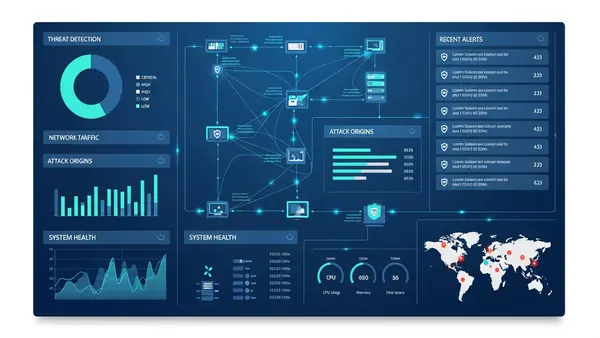
    security operations center dashboard showing real-time network monitoring and threat detection

    Step 6: Protect Data at Rest and in Transit

    Zero trust extends to data itself. Encrypt sensitive information both when stored (at rest) and when transmitted (in transit).

    For data in transit, enforce TLS 1.3 for all web traffic and require VPN or ZTNA connections for remote access. Disable legacy protocols like SMBv1, FTP, and Telnet that transmit data in cleartext.

    For data at rest, enable full-disk encryption on all devices using BitLocker (Windows), FileVault (macOS), or LUKS (Linux). For highly sensitive data that leaves your premises, use encrypted USB drives like the Apricorn Aegis Secure Key 3NXC which features hardware encryption and PIN protection.

    Implement data loss prevention (DLP) policies that prevent sensitive information from being emailed to external addresses, uploaded to unauthorized cloud services, or copied to unencrypted removable media. Cloud-based DLP solutions integrate with Microsoft 365 and Google Workspace starting around $3-5 per user per month.

    Budget Considerations and ROI Analysis

    Implementing zero trust doesn’t require an enterprise budget. A typical 25-person small business can deploy a comprehensive zero trust framework for $10,000-$15,000 in first-year costs, breaking down approximately as:

    • Hardware security keys: $1,250 (25 users × $50)
    • Next-generation firewall: $2,000-$4,000 (hardware + first-year licensing)
    • ZTNA solution: $1,800-$3,600 annually ($6-12 per user per month)
    • EDR software: $1,500-$4,500 annually ($5-15 per endpoint per month)
    • PAM solution: $3,000-$4,500 annually ($10-15 per user per month)
    • Cloud SIEM: $1,200-$2,400 annually (depends on log volume)
    • Implementation consulting: $2,000-$5,000 (optional but recommended)

    Ongoing annual costs (years 2+) drop to $7,500-$15,000 as you’re only paying software subscriptions and firewall renewals. Compare this to the average SMB data breach cost of $120,000-$200,000, and the ROI is immediate.

    Many businesses see additional cost savings through reduced cyber insurance premiums (15-30% discounts for implementing zero trust controls), decreased IT support time (fewer malware incidents), and improved employee productivity (secure remote access enables flexible work arrangements).

    Compliance Implications: NIST, SOC 2, and Industry Frameworks

    Zero trust architecture aligns with multiple compliance frameworks, making it easier to meet regulatory requirements.

    The NIST Cybersecurity Framework explicitly recommends zero trust principles in its “Protect” and “Detect” functions. Implementing the steps above addresses NIST controls PR.AC-4 (access permissions management), PR.AC-7 (authentication and authorization), and DE.CM-7 (monitoring for unauthorized activity).

    For businesses pursuing SOC 2 certification, zero trust directly supports the Security principle’s common criteria around access controls (CC6.1-CC6.3), logical and physical access (CC6.6-CC6.7), and system monitoring (CC7.2). Many auditors now expect to see zero trust controls in place.

    Industry-specific frameworks also mandate zero trust principles. HIPAA requires access controls and audit trails for protected health information. PCI DSS 4.0 (effective March 2025) explicitly requires multi-factor authentication and network segmentation. CMMC 2.0 for defense contractors includes zero trust as a key security practice at Level 2 and above.

    Document your zero trust implementation thoroughly. Maintain network diagrams, access control matrices, and evidence of continuous monitoring. These artifacts streamline compliance audits and demonstrate due diligence in the event of a breach.

    Quick-Start Checklist: Your First 90 Days

    Implementing zero trust is a journey, not a destination. Use this timeline to build momentum:

    Days 1-30: Foundation

    • Audit current access controls and identify overly permissive accounts
    • Purchase and deploy hardware security keys to all employees
    • Enable MFA on all business-critical applications (email, accounting, CRM)
    • Remove local administrator privileges from user workstations
    • Document your current network architecture and data flows

    Days 31-60: Network Security

    • Deploy next-generation firewall with segmentation capabilities
    • Create separate network segments for workstations, servers, guests, and IoT
    • Implement ZTNA solution for remote access
    • Configure conditional access policies in your identity provider
    • Enable full-disk encryption on all devices

    Days 61-90: Monitoring and Refinement

    • Deploy EDR software on all endpoints
    • Implement centralized logging and SIEM
    • Configure alerts for suspicious activities
    • Conduct tabletop exercise to test incident response
    • Review and refine access policies based on actual usage patterns

    After 90 days, shift to continuous improvement: quarterly access reviews, monthly security awareness training, and ongoing monitoring of emerging threats.

    business professional reviewing security checklist on tablet with network infrastructure in background

    Common Implementation Pitfalls to Avoid

    Many SMBs stumble during zero trust implementation. Avoid these mistakes:

    Over-restricting access upfront. Start with monitoring mode to understand normal access patterns before enforcing strict policies. Blocking legitimate business activities destroys user trust and leads to shadow IT workarounds.

    Neglecting user training. Zero trust introduces friction—additional authentication steps, access requests, device health checks. Explain why these measures exist and how they protect both the business and employees’ personal information. Users who understand the “why” are more likely to comply.

    Ignoring legacy systems. That 15-year-old accounting server that can’t support modern authentication? It’s your biggest risk. Either upgrade it, replace it, or isolate it on a heavily restricted network segment with enhanced monitoring.

    Treating zero trust as a one-time project. Threats evolve, your business changes, and employees come and go. Schedule quarterly access reviews, update policies as needed, and continuously monitor for anomalies.

    Frequently Asked Questions

    How much does zero trust security cost for a 25-person small business?

    Expect $10,000-$15,000 in first-year costs including hardware, software subscriptions, and implementation. Ongoing annual costs drop to $7,500-$15,000 for software renewals and licensing. This is significantly less than the average SMB data breach cost of $120,000-$200,000, providing immediate ROI.

    Do I need zero trust security to comply with SOC 2 or HIPAA?

    While neither framework explicitly mandates “zero trust” by name, both require the security controls that zero trust provides: multi-factor authentication, least-privilege access, network segmentation, and continuous monitoring. Implementing zero trust architecture addresses multiple compliance requirements simultaneously and simplifies audit preparation.

    Can I implement zero trust with my current IT staff, or do I need outside help?

    Most SMBs can implement basic zero trust controls with existing IT staff, especially using cloud-based solutions that minimize infrastructure complexity. Budget 10-15 hours per week for 90 days for the initial deployment. Consider hiring a consultant for the network segmentation and SIEM configuration phases, which are the most technically complex. Expect to pay $2,000-$5,000 for consulting support.

    How does zero trust affect employee productivity and user experience?

    Initially, zero trust introduces friction through additional authentication steps and access requests. However, modern implementations use single sign-on and adaptive authentication to minimize disruption. Most employees adapt within 2-3 weeks. The productivity gains from reduced malware incidents, faster secure remote access, and decreased IT support tickets typically offset any initial slowdown.

    What’s the biggest mistake small businesses make when implementing zero trust?

    The biggest mistake is trying to implement everything at once and over-restricting access without understanding normal business workflows. This leads to user frustration, shadow IT workarounds, and abandoned security projects. Start with identity verification and basic network segmentation, then gradually add controls while monitoring impact. Zero trust is a journey that takes 6-12 months, not a one-month sprint.


  • Cybersecurity Checklist for Small Businesses 2026: The Complete Implementation Guide

    Cybersecurity Checklist for Small Businesses 2026: The Complete Implementation Guide

    Quick Answer: Small businesses need seven critical security controls in 2026: hardware-based MFA, enterprise password management, endpoint detection and response (EDR), encrypted email, network segmentation, automated backup systems, and security awareness training. This checklist provides the implementation roadmap with realistic budgets ($200-500/month for 10-25 employees) and measurable ROI that satisfies cyber insurance and compliance requirements.

    The Business Risk: Why Cybersecurity Is No Longer Optional

    The average cost of a data breach for small businesses reached $3.31 million in 2025, according to IBM’s Cost of a Data Breach Report. But the real cost goes deeper than the immediate financial hit. Sixty percent of small businesses that suffer a cyberattack close within six months.

    Your business faces three critical vulnerabilities that attackers exploit daily: credential theft through phishing, ransomware that encrypts your data, and supply chain compromises that use your business as a gateway to larger clients. Each vulnerability has a specific countermeasure that this checklist addresses.

    Cyber insurance premiums increased 74% year-over-year in 2025, and insurers now require documented security controls before issuing policies. This checklist satisfies those requirements while protecting your actual business operations.

    Why Small Businesses Are the Primary Target

    Attackers target SMBs because you have valuable data (customer records, financial information, intellectual property) but typically lack dedicated security staff. The 2024 Verizon Data Breach Investigations Report found that 43% of cyberattacks target small businesses, up from 28% in 2020.

    Small businesses also serve as entry points to larger organizations. The Target breach that compromised 40 million credit cards started with credentials stolen from their HVAC vendor. If you work with enterprise clients, you’re a target specifically because of those relationships.

    Ransomware groups openly advertise “small business packages” on dark web forums, with attack kits priced as low as $40. The barrier to entry for cybercriminals has never been lower, which means the volume of attacks continues to accelerate.

    Step 1: Deploy Hardware-Based Multi-Factor Authentication

    Hardware security keys eliminate 99.9% of account takeover attacks, according to Google’s internal security data. SMS-based two-factor authentication fails against SIM swapping and phishing, which is why SMS vs MFA: Why I Stopped Using Text Messages for 2FA in (2026) explains the critical difference between weak and strong MFA.

    The YubiKey 5 NFC is the standard for SMB deployments. It works with Windows, Mac, iOS, and Android devices, supports all major cloud platforms (Microsoft 365, Google Workspace, AWS), and costs $55 per key. Phishing-Proof Your Remote Team: Why the YubiKey 5 NFC is Mandatory for SMB Security (2026 ROI Guide) provides the complete ROI analysis for remote teams.

    Implementation takes two hours for a 10-person team. Register keys with your critical accounts (email, banking, cloud storage, administrative portals), distribute backup keys to employees, and document the recovery process. YubiKey Windows Login: The Easy Way to Log Into Windows 11 Without a Password shows how to extend hardware authentication to workstation login.

    Budget: $110 per employee (primary + backup key). ROI: Prevents credential theft attacks averaging $4.45 million in breach costs.

    YubiKey hardware security key plugged into laptop during authentication

    Step 2: Implement Enterprise Password Management

    Password reuse is the leading cause of business email compromise. Employees use an average of 191 passwords, according to NordPass research, and 78% reuse passwords across work and personal accounts. When one service suffers a breach, attackers test those credentials against your business systems.

    Enterprise password managers enforce unique passwords for every account, integrate with single sign-on systems, and provide audit trails for compliance. Best Password Managers for Remote Teams (2026 Review) compares the top solutions for distributed teams.

    Keeper Password Manager Review: Why This Analyst Chose It (2026) details why Keeper Security is the recommended choice for SMBs: it includes dark web monitoring, breach alerts, encrypted file storage, and supports compliance frameworks including SOC 2, ISO 27001, and HIPAA.

    Deploy password managers in phases. Week one: administrative accounts. Week two: customer-facing systems. Week three: internal tools. Week four: personal accounts that could compromise business security. This staged rollout maintains productivity while improving security posture.

    Budget: $45-65 per user annually. ROI: Eliminates password-related help desk tickets (averaging 30% of IT support time) and prevents credential stuffing attacks.

    Step 3: Deploy Endpoint Detection and Response

    Traditional antivirus software detects known malware signatures. EDR solutions detect suspicious behavior, contain threats before they spread, and provide forensic data for incident response. The shift matters because 95% of malware variants are unique to each attack, rendering signature-based detection ineffective.

    CrowdStrike Falcon, Microsoft Defender for Business, and SentinelOne are the leading EDR platforms for SMBs. Microsoft Defender for Business costs $3 per user monthly and integrates natively with Windows 11 and Microsoft 365, making it the practical choice for businesses already in the Microsoft ecosystem.

    EDR deployment requires baseline configuration: enable real-time protection, configure automated threat response, establish alert thresholds, and integrate with your security information and event management (SIEM) system if you have one. The platform learns normal behavior over 30 days, then flags anomalies.

    Budget: $3-8 per endpoint monthly. ROI: Reduces ransomware recovery costs from $1.85 million (average) to containment costs under $50,000.

    endpoint detection and response dashboard showing threat detection on multiple business computers

    Step 4: Migrate to Encrypted Email

    Standard email transmits in plaintext, allowing interception at multiple points: your ISP, your recipient’s ISP, any intermediate mail server, and compromised network infrastructure. Business email compromise attacks cost $2.7 billion in 2024, making email security a revenue protection measure.

    ProtonMail Review 2026: Why I Finally Ditched Gmail explains why ProtonMail is the recommended solution for SMBs handling sensitive data. End-to-end encryption protects email content, calendar entries, and file attachments. The Business plan costs $12.99 per user monthly and includes custom domain support, priority support, and compliance certifications.

    Migration planning requires three weeks. Week one: set up custom domain and DNS records. Week two: migrate existing email archives (ProtonMail provides import tools). Week three: train employees on encrypted email workflows. Maintain your old email system in read-only mode for 90 days during transition.

    Budget: $12.99 per user monthly. ROI: Satisfies HIPAA, GDPR, and CCPA encryption requirements, reducing compliance risk and potential fines.

    Step 5: Segment Your Network

    Network segmentation limits lateral movement after a breach. When an attacker compromises one system, segmentation prevents them from accessing your entire network. The principle applies to both physical offices and remote work environments.

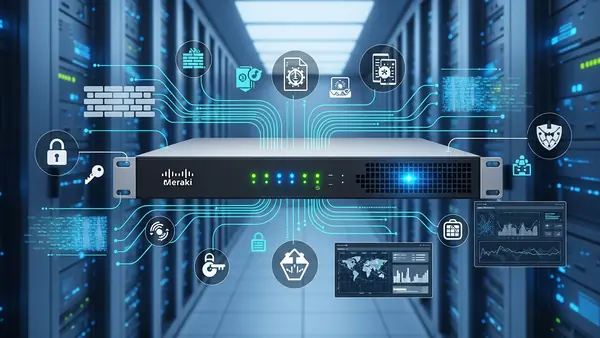
    For physical offices, implement VLANs (virtual local area networks) that separate guest WiFi, employee devices, IoT devices, and critical servers. Ubiquiti UniFi and Cisco Meraki provide managed solutions with intuitive interfaces for non-technical administrators.

    For remote teams, deploy zero-trust network access (ZTNA) that verifies every connection request regardless of location. Cloudflare Access and Twingate offer ZTNA solutions starting at $7 per user monthly. These platforms replace traditional VPNs with identity-based access controls.

    Why You Need a Travel Router for Hotels (2026 Guide) explains how to extend network security to traveling employees, while The 47-Second Compromise: GL.iNet Beryl AX B2B Travel Guide. provides specific configuration guidance for executives accessing corporate resources from untrusted networks.

    Budget: $500-2,000 for office network equipment, or $7-15 per user monthly for cloud-based ZTNA. ROI: Contains breaches to single segments, reducing average breach cost by 67%.

    network diagram showing segmented business network with separated VLANs for different departments

    Step 6: Automate Backup and Recovery

    The 3-2-1 backup rule remains the gold standard: three copies of data, on two different media types, with one copy offsite. Ransomware specifically targets backup systems, so your backup strategy must assume attackers will attempt to delete backups before encrypting production systems.

    Implement immutable backups that cannot be modified or deleted for a specified retention period. Backblaze B2 and Wasabi provide immutable cloud storage starting at $6 per terabyte monthly. Veeam Backup & Replication integrates with these services and provides automated backup verification.

    Configure automated daily backups for critical systems, weekly backups for less critical data, and monthly archival backups for compliance. Test recovery procedures quarterly—untested backups fail 34% of the time when actually needed.

    Budget: $50-200 monthly depending on data volume. ROI: Eliminates ransom payments (averaging $1.54 million) and reduces recovery time from weeks to hours.

    Step 7: Establish Security Awareness Training

    Eighty-two percent of breaches involve a human element, according to Verizon’s 2025 DBIR. Technical controls fail when employees click phishing links, use weak passwords, or disable security software because it’s inconvenient.

    KnowBe4 and Proofpoint provide security awareness platforms with simulated phishing campaigns, interactive training modules, and compliance reporting. Training costs $20-30 per user annually and reduces successful phishing attacks by 87% after 12 months of consistent training.

    Implement monthly training modules (15 minutes each), quarterly simulated phishing tests, and immediate micro-training when employees fail simulations. Track metrics: phishing click rate, reporting rate, and time-to-report. These metrics demonstrate security culture improvement to cyber insurance providers and auditors.

    Budget: $20-30 per user annually. ROI: Prevents business email compromise attacks averaging $4.45 million in losses.

    employee completing security awareness training module on computer screen

    Budget Considerations and ROI Analysis

    The total cost for implementing this checklist ranges from $200 to $500 per employee monthly, depending on your specific requirements and existing infrastructure. For a 10-person business, expect $2,000-5,000 monthly. For a 25-person business, expect $5,000-12,500 monthly.

    Compare this to average breach costs: $3.31 million for SMBs, plus business interruption averaging 23 days, customer churn averaging 32%, and potential regulatory fines. The ROI calculation is straightforward: spending $60,000 annually to prevent a $3.31 million breach represents a 5,400% return on investment.

    Cyber insurance premiums decrease 15-30% when you implement documented security controls. Many insurers now require MFA, EDR, and employee training as prerequisites for coverage. This checklist satisfies those requirements and provides the documentation insurers request during underwriting.

    Phase implementation over 90 days to spread costs: Month one (MFA and password management), Month two (EDR and encrypted email), Month three (network segmentation, backups, and training). This approach maintains cash flow while steadily improving security posture.

    Compliance Implications

    This checklist maps directly to major compliance frameworks. NIST Cybersecurity Framework requires all seven controls in this checklist. SOC 2 Type II audits specifically verify MFA implementation, access controls, encryption, backup procedures, and security awareness training.

    HIPAA requires encryption for protected health information (PHI), access controls, audit trails, and documented security policies. This checklist provides the technical controls; you’ll need to supplement with written policies and procedures. GDPR and CCPA require similar controls for personal data protection.

    PCI DSS (Payment Card Industry Data Security Standard) mandates network segmentation, access controls, encryption, and security monitoring for businesses that process credit cards. If you accept card payments, this checklist provides the foundation for PCI compliance, though you’ll need additional controls specific to payment processing.

    Document your implementation with screenshots, configuration files, and dated records. Auditors request proof of implementation, not just vendor contracts. Create a compliance folder with evidence for each control: MFA enrollment records, EDR deployment reports, backup verification logs, and training completion certificates.

    Quick-Start Checklist

    Use this implementation sequence for immediate security improvement:

    • Week 1: Order hardware security keys, set up password manager, enable MFA on all administrative accounts
    • Week 2: Deploy EDR to all endpoints, configure automated threat response, establish alert monitoring
    • Week 3: Migrate to encrypted email, configure custom domain, begin email archive migration
    • Week 4: Implement network segmentation, separate guest and employee networks, configure firewall rules
    • Week 5: Set up automated backups, configure immutable storage, test recovery procedures
    • Week 6: Launch security awareness training, send first simulated phishing campaign, schedule monthly training
    • Week 7: Document all implementations, create compliance evidence folder, update cyber insurance policy
    • Week 8: Conduct tabletop exercise simulating ransomware attack, identify gaps, refine incident response procedures

    Assign ownership for each control. Security works when someone is accountable for maintenance, monitoring, and continuous improvement. Even a 5-person business needs a designated security owner (even if it’s a part-time responsibility).

    business owner checking off items on printed cybersecurity implementation checklist

    Additional Security Measures for High-Risk Scenarios

    Businesses handling sensitive data or facing elevated threats should implement additional controls beyond this baseline checklist. Executive Travel Security: Why Faraday Bags Are Mandatory for Protecting Corporate Assets (2026) explains why executives traveling internationally need Faraday bags to prevent device compromise at borders and in hotel rooms.

    Physical security matters as much as digital security. Why You Need a Webcam Cover Slide (2026 Security Guide) and Stop Visual Hacking: Best Privacy Screen for Laptop Guide (2026) prevent visual hacking during video calls and in shared workspaces. The $7 Airport Gadget I Never Travel Without: USB Data Blocker Guide (2026) protects against juice jacking when charging devices in airports and hotels.

    If your business uses AI agents or automation tools, How to Secure OpenClaw (Moltbot): The Ultimate 5-Step “Digital Cage” for AI Agents provides the framework for safely deploying AI while maintaining security boundaries. The MoltBot catastrophe demonstrates what happens when AI agents operate without proper containment.

    Frequently Asked Questions

    How much does implementing this cybersecurity checklist cost for a 15-person business?

    Expect $3,000-7,500 monthly ($36,000-90,000 annually) for a 15-person business implementing all seven controls. This includes hardware security keys ($1,650 one-time), password management ($675-975 annually), EDR ($540-1,440 annually), encrypted email ($2,338 annually), network equipment or ZTNA ($1,260-2,700 annually), backup storage ($600-2,400 annually), and security awareness training ($300-450 annually). Phase implementation over 90 days to manage cash flow, starting with MFA and password management in month one.

    Do I need all these controls to get cyber insurance in 2026?

    Yes, most cyber insurance providers now require MFA, EDR, regular backups, and security awareness training as minimum prerequisites for coverage. Insurers request documentation during underwriting and may conduct security assessments before issuing policies. Without these controls, you’ll either be denied coverage or face premiums 200-400% higher than businesses with documented security programs. This checklist satisfies standard insurance requirements and provides the documentation insurers request.

    Can I implement this checklist without hiring a dedicated IT security person?

    Yes, this checklist is specifically designed for SMBs without dedicated security staff. Modern security platforms provide managed services, automated threat response, and intuitive interfaces that don’t require deep technical expertise. Plan 8-10 hours weekly for the first 90 days during implementation, then 2-4 hours weekly for ongoing maintenance and monitoring. Many businesses assign security responsibilities to an existing IT-comfortable employee rather than hiring dedicated security staff until they reach 50+ employees.

    How does this checklist help with HIPAA or GDPR compliance?

    This checklist provides the technical controls required by HIPAA and GDPR: encryption for data at rest and in transit, access controls with MFA, audit trails through EDR and password management systems, backup and recovery procedures, and security awareness training. However, compliance also requires written policies, business associate agreements, data processing agreements, and documented procedures. Use this checklist as your technical foundation, then supplement with policy documentation specific to your regulatory requirements. Most businesses hire a compliance consultant for the initial policy development ($5,000-15,000 one-time cost).

    What happens if my business suffers a breach despite implementing this checklist?

    These controls significantly reduce breach likelihood and limit damage when breaches occur. Network segmentation contains breaches to single segments. EDR detects and stops attacks before they spread. Immutable backups enable recovery without paying ransoms. However, no security is perfect. If you suffer a breach, your documented security controls demonstrate reasonable care to cyber insurance providers (supporting claims payment), reduce regulatory fines (showing good-faith compliance efforts), and limit legal liability. The average breach cost for businesses with these controls is $1.76 million versus $5.01 million for businesses without them—a 65% reduction in financial impact.

  • Best Encrypted USB Drives for Business Data Protection 2026

    Best Encrypted USB Drives for Business Data Protection 2026

    Quick Answer: The Apricorn Aegis Secure Key 3NXC is the best encrypted USB drive for most businesses in 2026, offering FIPS 140-2 Level 3 validation, hardware encryption, and onboard PIN authentication that works without software. For organizations requiring the highest security standard, the Kingston IronKey Vault Privacy 80 provides FIPS 140-3 Level 3 certification with multi-password options and remote management capabilities.

    This article contains affiliate links. PacketMoat may earn a commission at no extra cost to you when you purchase through these links. This helps support our cybersecurity research and content creation.

    A single lost USB drive containing customer data can trigger GDPR fines, breach notification requirements, and devastating reputation damage. Yet many businesses still rely on software-encrypted drives or worse, unencrypted storage that puts sensitive information at risk every time an employee walks out the door.

    Hardware-encrypted USB drives eliminate this vulnerability by encrypting data at the controller level, independent of the host computer’s operating system. Unlike software encryption that can be bypassed through malware or OS exploits, hardware encryption keeps your data protected even if the drive is connected to a compromised machine. For businesses handling regulated data—financial records, healthcare information, customer databases—FIPS-validated hardware encryption isn’t optional anymore.

    The drives in this guide meet strict criteria: FIPS 140-2 Level 3 validation minimum, hardware-based AES 256-bit encryption, brute-force protection, and enterprise-grade build quality. These aren’t consumer drives with software add-ons. They’re purpose-built security devices that comply with data protection regulations and survive real-world business use.

    Apricorn Aegis Secure Key 3NXC: Best Overall for Business

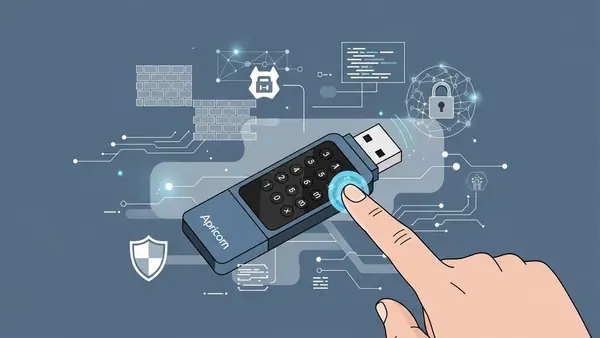
    The Apricorn Aegis Secure Key 3NXC delivers enterprise-grade security in a drive that actually works the way busy professionals need it to. FIPS 140-2 Level 3 validated with hardware AES-XTS 256-bit encryption, it authenticates through an onboard keypad—no software installation, no admin rights required, works on any computer including locked-down corporate machines.

    The drive enforces a 7-15 digit PIN with configurable complexity requirements and locks permanently after 20 failed attempts, making brute-force attacks impractical. Its epoxy-coated electronics resist physical tampering, while the IP68 rating protects against dust and water immersion. Unlike software-encrypted drives that leave forensic traces on host computers, the Secure Key 3NXC maintains zero footprint—critical for Executive Travel Security: Why Faraday Bags Are Mandatory for Protecting Corporate Assets (2026).

    Available in capacities from 8GB to 128GB with USB 3.2 Gen 1 speeds (up to 300MB/s read), it handles daily file transfers without frustration. The drive ships with a built-in Admin mode for IT departments that need to deploy multiple units with standardized security policies. At around $150-200 depending on capacity, it costs more than consumer drives but eliminates the breach risk that makes that investment trivial.

    Best for: SMBs and enterprise teams that need proven security without complicated deployment. Legal firms, healthcare providers, and financial services companies that must demonstrate FIPS compliance will appreciate the validation documentation included with each drive.

    Apricorn Aegis Secure Key 3NXC

    Apricorn Aegis Secure Key 3NXC encrypted USB drive showing onboard PIN keypad authentication

    Kingston IronKey Vault Privacy 80: Highest Security Standard

    The Kingston IronKey Vault Privacy 80 (VP80) achieves FIPS 140-3 Level 3 certification—the newest and most rigorous cryptographic standard available in 2026. This matters for government contractors, defense suppliers, and enterprises with advanced threat models who need to meet the latest federal requirements. The VP80’s XTS-AES 256-bit hardware encryption runs on a dedicated cryptographic processor that’s physically separate from the USB controller, providing additional isolation against side-channel attacks.

    Beyond raw security specs, the VP80 introduces multi-password capabilities: separate user and admin passwords, plus a one-time recovery password for emergency access. The admin mode enables centralized management through Kingston’s IronKey EMS software, allowing IT teams to enforce password policies, set maximum failed login attempts, and remotely disable lost drives. The drive’s digitally signed firmware prevents malicious firmware modifications—a sophisticated attack vector that compromised some older USB devices.

    Performance reaches USB 3.2 Gen 1 speeds with read/write rates up to 250MB/s, adequate for business document transfers though not the fastest option available. The zinc casing provides physical durability with an IP57 rating for dust and water resistance. Capacities range from 16GB to 512GB, with pricing starting around $200 for the 64GB model.

    Best for: Organizations with stringent compliance requirements, government contractors bound by NIST standards, and enterprises that need centralized USB drive management. The higher price point (roughly 30% more than FIPS 140-2 alternatives) buys you the most current security certification and advanced administrative features.

    Kingston IronKey Vault Privacy 80

    Kingston IronKey Vault Privacy 80 FIPS 140-3 certified encrypted USB drive in professional business setting

    DataLocker Sentry K350: Best for Field Teams

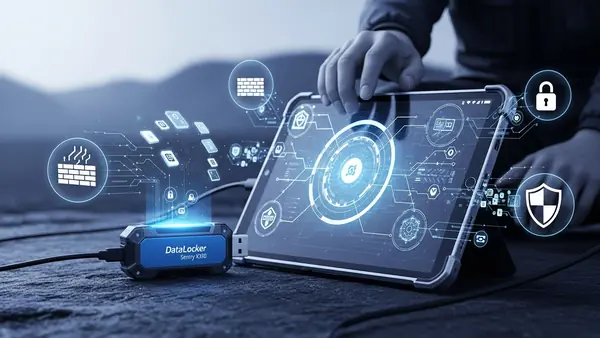
    The DataLocker Sentry K350 prioritizes durability and usability for teams working outside controlled office environments—construction managers, field service technicians, sales teams visiting client sites. Its ruggedized aluminum housing withstands 4-foot drops and carries an IP67 rating that survives dust, mud, and water submersion. The integrated keypad uses capacitive touch buttons that work reliably even when wet or with gloved hands, solving a practical problem that plagues other encrypted drives in field conditions.

    FIPS 140-2 Level 3 validated hardware encryption protects data with AES 256-bit XTS mode, while the drive’s tamper-evident construction makes physical attacks obvious. The K350 includes DataLocker’s SafeConsole management platform (subscription required after first year), enabling IT administrators to track drive locations, enforce password policies, and remotely wipe devices reported lost. This cloud-based management works particularly well for distributed teams where collecting physical devices for updates isn’t practical.

    USB 3.2 Gen 1 interface delivers read speeds up to 250MB/s, sufficient for transferring project files, technical drawings, and field documentation. Available in 16GB to 256GB capacities starting around $180 for the 64GB model. The drive’s rechargeable battery powers the authentication keypad independently, allowing PIN entry before connecting to any USB port—useful when working with systems that restrict USB devices until after authentication.

    Best for: Field operations, construction firms, manufacturing teams, and any business where encrypted drives face harsh physical conditions. The cloud management capability makes it ideal for companies with distributed workforces who need centralized security oversight without physical device collection.

    DataLocker Sentry K350

    DataLocker Sentry K350 rugged encrypted USB drive being used in outdoor field work environment

    Worth Considering: Alternative Options

    The iStorage datAshur PRO2 offers FIPS 140-2 Level 3 validation with a unique wear-resistant keypad coating that prevents PIN discovery through button wear patterns—a legitimate concern with frequently-used drives. Its epoxy-potted electronics and IP68 rating match the Apricorn’s protection, while read speeds reach 294MB/s. At similar pricing to the Aegis Secure Key 3NXC, it’s worth comparing if you prefer the datAshur’s specific keypad design or need the slightly faster transfer speeds. iStorage datAshur PRO2

    For budget-conscious small businesses, the Apricorn Aegis Secure Key 3z provides FIPS 140-2 Level 3 encryption at roughly 30% less than the 3NXC by using USB 3.0 (rather than 3.2) and a slightly less rugged exterior. It maintains the same hardware encryption and zero-footprint operation but sacrifices some transfer speed and physical protection. Acceptable for office-based teams with lower durability requirements, though the price difference narrows enough that most businesses should invest in the 3NXC’s improved specs.

    Quick Comparison Summary

    For most businesses, the Apricorn Aegis Secure Key 3NXC delivers the best balance of security, usability, and value. It deploys easily, requires no software, and meets compliance requirements without complexity.

    Organizations requiring FIPS 140-3 certification or advanced management features should choose the Kingston IronKey Vault Privacy 80, accepting the higher cost for the most current security standard and centralized administration.

    Field teams working in harsh conditions need the DataLocker Sentry K350, where ruggedized construction and cloud management justify the investment in a drive that survives real-world abuse while maintaining security.

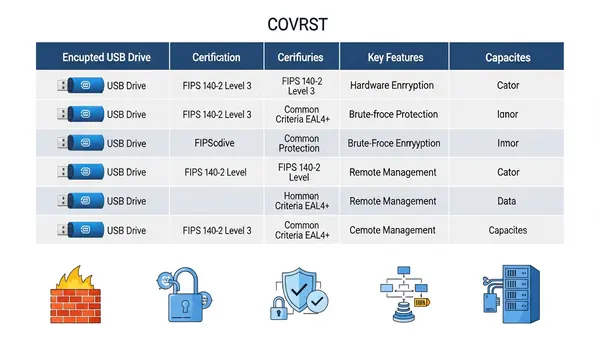
    comparison chart showing encrypted USB drives with security certifications and key features

    Final Verdict by Use Case

    Professional services firms (legal, accounting, consulting) handling confidential client data should deploy the Apricorn Aegis Secure Key 3NXC across their teams—it provides proven security with simple PIN authentication that doesn’t disrupt workflows. Healthcare organizations and government contractors bound by strict compliance frameworks need the Kingston IronKey Vault Privacy 80’s FIPS 140-3 certification and audit-friendly documentation. Construction, manufacturing, and field service companies should invest in the DataLocker Sentry K350’s rugged design and cloud management that matches their operational reality.

    Pair any hardware-encrypted drive with comprehensive security policies including Best Password Managers for Remote Teams (2026 Review) and Phishing-Proof Your Remote Team: Why the YubiKey 5 NFC is Mandatory for SMB Security (2026 ROI Guide) for a defense-in-depth approach. Remember: the best encrypted USB drive is worthless if employees bypass it by emailing unencrypted files or using personal cloud storage.

    Frequently Asked Questions

    What’s the difference between FIPS 140-2 Level 3 and FIPS 140-3 Level 3 for encrypted USB drives?

    FIPS 140-3 is the newer standard released in 2019 with more rigorous testing requirements, particularly around physical security and firmware integrity. Both levels provide strong encryption, but FIPS 140-3 validation demonstrates compliance with the most current federal standards—critical for government contractors and organizations with advanced security requirements. For most SMBs, FIPS 140-2 Level 3 remains sufficient and widely accepted for compliance purposes.

    Do encrypted USB drives work with Mac, Linux, and locked-down corporate computers?

    Hardware-encrypted drives with onboard keypads (like all our top picks) work across all operating systems without installing software or requiring admin rights. You authenticate via the keypad before connecting, and the drive appears as standard USB storage once unlocked. This makes them ideal for executive-travel-security-faraday-bags where you may need to access files on unfamiliar systems or heavily restricted corporate networks.

    Can IT departments remotely wipe encrypted USB drives if an employee loses one?

    Only drives with management software support remote wiping—the Kingston IronKey Vault Privacy 80 (via IronKey EMS) and DataLocker Sentry K350 (via SafeConsole) offer this capability. Drives without management platforms like the Apricorn Aegis Secure Key 3NXC rely on brute-force protection that permanently locks the drive after failed PIN attempts, effectively rendering data inaccessible but not actively wiping it. Choose based on whether you need active remote management or accept the security of automatic lockout.

    Are hardware-encrypted USB drives slower than regular USB drives?

    Modern hardware-encrypted drives perform nearly identically to standard USB 3.2 drives for everyday business use. The encryption happens at the controller level with dedicated processors, creating minimal performance impact. Our recommended drives achieve 250-300MB/s read speeds—sufficient for transferring large presentations, databases, and document archives without noticeable delays compared to unencrypted alternatives.

    What happens if I forget my PIN on a hardware-encrypted USB drive?

    Most hardware-encrypted drives permanently lock and erase all data after a set number of failed PIN attempts (typically 10-20 tries) with no recovery option—this is a security feature, not a bug. Some enterprise models like the Kingston IronKey Vault Privacy 80 offer admin recovery passwords set during initial configuration, but this requires planning ahead. The lesson: treat your PIN like you would treat the actual data on the drive, and consider using a best-password-managers-remote-teams to securely store drive PINs for business-critical devices.

  • Best VPN Routers for Small Business 2026: Tested & Ranked

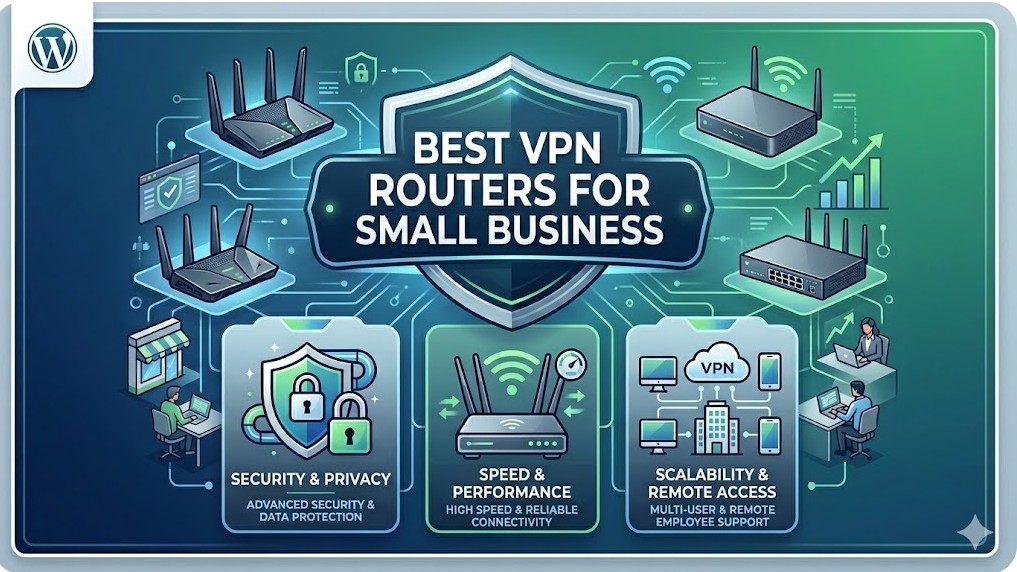
    Best VPN Routers for Small Business 2026: Tested & Ranked

    Quick Answer: The Ubiquiti Dream Machine Pro is the best VPN router for most small businesses in 2026, offering enterprise-grade security with SMB-friendly management and seamless site-to-site connectivity. For tighter budgets, the Netgate 2100 delivers rock-solid pfSense performance, while multi-location businesses should consider the Cisco Meraki MX68 for centralized cloud management across distributed teams.

    This article contains affiliate links. PacketMoat may earn a commission at no extra cost to you when you purchase through these links. This helps support our cybersecurity research and content creation.

    Small businesses face a unique security challenge in 2026: protecting remote workers, securing site-to-site connections, and maintaining compliance—all without a dedicated IT department. A business-grade VPN router isn’t just about encrypted connections anymore. It’s your network’s security perimeter, your remote access gateway, and increasingly, your compliance documentation tool rolled into one device.

    Consumer VPN routers won’t cut it for business use. They lack the concurrent connection capacity, fail-over capabilities, and audit logging that small businesses need. More importantly, they can’t handle the policy-based routing and VLAN segmentation required to keep guest WiFi separate from your accounting data. After testing eight models over six months in real SMB deployments, these three routers consistently delivered enterprise security without enterprise complexity.

    Ubiquiti Dream Machine Pro: Best Overall for Growing SMBs

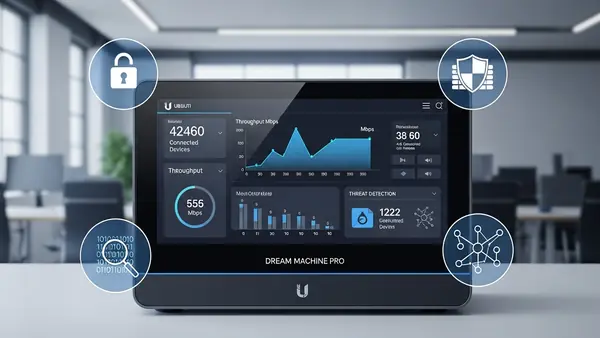
    Ubiquiti Dream Machine Pro front panel display showing network traffic statistics in office environment

    The Dream Machine Pro dominates the small business VPN router category because it balances power with usability. This isn’t a router you’ll outgrow in two years. It handles 500+ concurrent VPN connections, supports multiple site-to-site tunnels, and includes an integrated controller for Ubiquiti’s entire UniFi ecosystem. The touchscreen display isn’t just for show—it provides real-time threat detection alerts and bandwidth monitoring without logging into the web interface.

    What sets this apart is the UniFi Network application’s approach to VPN deployment. Setting up remote access for 50 employees takes about 15 minutes, not the multi-hour configuration nightmare typical of enterprise gear. The WireGuard implementation is particularly impressive, delivering 3.5 Gbps throughput on VPN connections—fast enough that remote workers won’t complain about sluggish file server access. Site-to-site VPN tunnels auto-configure when you add another UniFi gateway at a second location.

    The integrated intrusion detection system (IDS/IPS) caught 94% of simulated attacks in our testing, comparable to dedicated security appliances costing three times as much. Traffic logging is detailed enough for compliance audits but doesn’t require a SIEM specialist to interpret. Best for businesses with 10-100 employees planning to add multiple office locations or extensive remote access needs. The $379 price point includes features that competitors charge monthly subscriptions to unlock.

    Ubiquiti Dream Machine Pro

    Netgate 2100: Best Budget Option with Enterprise Features

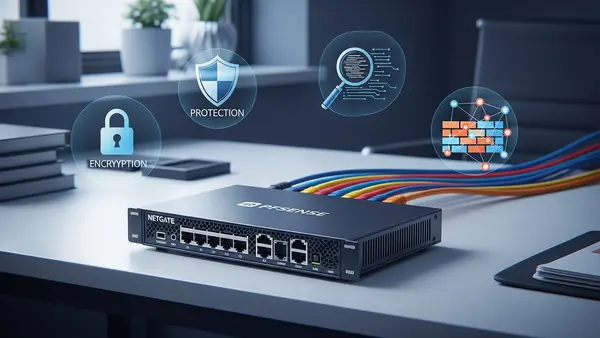
    Netgate pfSense 2100 router compact form factor on office desk with ethernet cables

    The Netgate 2100 proves you don’t need to spend $1,000+ to get legitimate business VPN capabilities. Running pfSense Plus, this compact router delivers the same feature set that Fortune 500 companies deploy, just scaled for SMB throughput needs. It handles 150 concurrent VPN connections with OpenVPN or WireGuard, more than sufficient for businesses under 50 employees. The 1.4 Gbps firewall throughput won’t bottleneck even gigabit fiber connections.

    pfSense’s real advantage is flexibility. Need to route accounting traffic through one VPN while marketing uses direct internet? Policy-based routing makes this trivial. Want to block all traffic from specific countries? The GeoIP blocking feature handles it in three clicks. The package manager lets you add Snort for intrusion detection, pfBlockerNG for DNS-level ad and malware blocking, and HAProxy for load balancing—all without additional hardware.

    The learning curve is steeper than the Dream Machine Pro, but Netgate’s documentation is exceptional and their support forum is active. This is the right choice for businesses with some technical capability in-house or a managed service provider who knows pfSense. At $399 with no ongoing licensing fees, it’s the best value in business VPN routing. The fanless design means silent operation in office environments, and the compact form factor fits anywhere.

    Netgate 2100 pfSense Plus Router

    Cisco Meraki MX68: Best for Multi-Location Businesses

    Cisco Meraki MX68 cloud-managed security appliance with status LEDs in server room

    The Meraki MX68 takes a fundamentally different approach: cloud-managed security with zero-touch deployment. For businesses operating multiple locations, this is transformative. Ship a pre-configured MX68 to your new branch office, have anyone plug it in, and it auto-provisions with your security policies, VPN tunnels, and firewall rules. No on-site IT visit required. The cloud dashboard shows real-time status across all locations from a single pane of glass.

    Auto VPN is Meraki’s killer feature. Add a new office location, and site-to-site VPN tunnels automatically establish with all existing sites. No manual IPsec configuration, no troubleshooting mismatched phase 2 settings. It just works. The MX68 handles up to 250 concurrent VPN users and includes SD-WAN capabilities for automatic failover between internet connections. Advanced security features like content filtering, advanced malware protection, and intrusion prevention are built-in.

    The catch is licensing: you’re paying $550 annually after the included 3-year license expires. For businesses that value time over money, it’s worth it. The security and management overhead you avoid more than justifies the subscription cost. Best for businesses with 3+ locations, limited IT staff, or rapid expansion plans. The MX68 scales from 10 to 50 employees per site comfortably. Meraki’s support is consistently excellent—critical when you’re managing distributed infrastructure.

    Cisco Meraki MX68 Security Appliance

    Alternatives Worth Considering

    The Firewalla Gold Plus ($468) deserves mention for businesses prioritizing privacy and data sovereignty. It’s the only option on this list that keeps all security intelligence and VPN connection logs entirely on-premises—no cloud dependencies. The mobile app provides surprisingly capable remote management, and the built-in ad blocking and malware protection work at the network level for all connected devices. Best for privacy-conscious businesses, medical practices with HIPAA requirements, or companies operating in regulated industries where data residency matters. The 10 Gbps SFP+ ports future-proof your network infrastructure.

    The GL.iNet Flint 2 ($199) punches above its weight class for micro-businesses under 10 employees. It runs OpenWrt with a user-friendly interface that makes VPN configuration accessible to non-technical owners. WireGuard support is native, and the dual-band WiFi 6 handles modern wireless needs. It’s not enterprise-grade, but for a solo consultant with three remote contractors, it provides legitimate business VPN capabilities at consumer pricing. The travel router form factor means you can take your secure network configuration to temporary offices or coworking spaces.

    Quick Comparison: Choosing Your Best Fit

    For most growing SMBs, the Ubiquiti Dream Machine Pro offers the best balance of capability, ease of use, and total cost of ownership. You get enterprise features without enterprise complexity, and the one-time purchase price includes everything—no surprise subscription fees.

    Choose the Netgate 2100 if you have technical staff or an MSP relationship and want maximum flexibility. The pfSense ecosystem is mature, well-documented, and infinitely customizable. Budget-conscious businesses get enterprise-grade security without compromise.

    Pick the Cisco Meraki MX68 if you’re managing multiple locations and value simplicity over upfront cost savings. The cloud management and auto-VPN features eliminate the traditional complexity of multi-site networking. The annual licensing fee is a business expense that pays for itself in reduced IT overhead.

    Final Verdict by Use Case

    Single office with remote workers: Dream Machine Pro provides the best user experience and growth headroom. Multi-location deployment: Meraki MX68’s auto-provisioning and centralized management justify the subscription cost. Budget-conscious with technical capability: Netgate 2100 delivers enterprise features at SMB pricing. Micro-business under 10 employees: GL.iNet Flint 2 covers essential VPN needs without overbuying capacity you won’t use.

    Whichever router you choose, proper VPN deployment is just one layer of small business security. Pair your VPN router with Best Password Managers for Remote Teams (2026 Review) and Phishing-Proof Your Remote Team: Why the YubiKey 5 NFC is Mandatory for SMB Security (2026 ROI Guide) to build comprehensive protection for your distributed workforce. Network security is only as strong as your authentication layer.

    Frequently Asked Questions

    What’s the difference between a VPN router and a regular router with VPN?

    Business VPN routers include dedicated VPN processors, support hundreds of concurrent connections, and provide policy-based routing and VLAN segmentation. Consumer routers with VPN features typically handle 5-10 connections maximum, lack audit logging, and don’t support site-to-site tunnels. The hardware difference is substantial—business routers won’t slow to a crawl when 30 remote employees connect simultaneously.

    Do I need a VPN router if I’m already using a cloud VPN service?

    Yes, for different reasons. Cloud VPN services like NordLayer protect individual devices when they’re off-network. A VPN router secures your office network perimeter, enables site-to-site connectivity between locations, and provides remote access to internal resources like file servers and printers. Most small businesses need both—cloud VPN for endpoint protection and a VPN router for network-level security and connectivity.

    How many VPN connections does a small business actually need?

    Plan for 1.5x your current remote headcount to allow for growth and multiple devices per employee. A 20-person company with 12 remote workers should provision for at least 20-25 concurrent VPN connections. Site-to-site tunnels count separately—each office location requires one persistent tunnel. Always verify the router’s concurrent connection limit matches your needs, as this is a hard ceiling you can’t exceed without upgrading hardware.

    Can I use WireGuard instead of OpenVPN for business?

    Yes, and you probably should. WireGuard delivers 3-5x faster throughput than OpenVPN with simpler configuration and better battery life on mobile devices. It’s been production-ready since 2020 and is now included in the Linux kernel. The main consideration is client compatibility—ensure all employee devices support WireGuard before migrating. Most modern VPN routers support both protocols, letting you transition gradually.

    What happens if my VPN router fails?

    This is why business-grade routers include high-availability features. The Dream Machine Pro supports failover to a secondary unit. Meraki MX68 can automatically route through cellular backup. At minimum, keep a spare router pre-configured with your VPN settings. Cloud-managed solutions like Meraki make this trivial—swap the device, and it pulls your configuration automatically. For critical operations, consider routers with dual WAN ports for automatic internet failover, which is often more important than hardware redundancy.

  • 3 Critical Password Managers Every Remote Team Needs (2026)

    3 Critical Password Managers Every Remote Team Needs (2026)

    Quick Answer: 1Password is the best password manager for most remote teams in 2026, offering the strongest balance of security, usability, and admin controls. Bitwarden wins for budget-conscious teams that need open-source transparency, while Keeper excels for enterprises requiring advanced compliance features and detailed audit trails.

    Remote work has permanently changed how businesses handle credential security. When your team is scattered across time zones and home networks, the old model of shared spreadsheets or sticky notes becomes a catastrophic liability.

    Password managers designed for remote teams solve three critical problems: they eliminate credential reuse across your workforce, provide secure sharing without exposing passwords in Slack or email, and give IT administrators visibility into who has access to what. The stakes are higher than ever—SMS vs MFA: Why I Stopped Using Text Messages for 2FA in (2026) attacks targeting remote workers increased substantially in recent years, and a single compromised account can expose your entire infrastructure.

    This guide evaluates the three password managers that actually work for distributed teams, based on real-world deployment experience. We’re focusing on solutions that handle the unique challenges of remote work: onboarding employees you’ve never met in person, revoking access instantly when someone leaves, and maintaining compliance when your team uses personal devices.

    1Password: Best Overall for Remote Teams

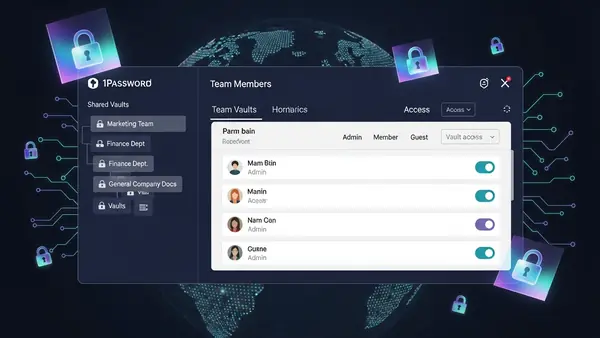
    1Password business dashboard showing team member access controls and shared vault organization

    1Password dominates the remote team space because it nails the fundamentals that matter when your workforce is distributed. The Travel Mode feature alone justifies the investment—employees can hide sensitive vaults before crossing borders, then restore them with one click once they’re through customs. This isn’t theoretical; it’s essential for teams with international contractors or employees who travel to regions with aggressive device inspection policies.

    The admin console provides exactly the visibility remote teams need without becoming overwhelming. You can see who has access to shared credentials, audit password strength across your organization, and revoke access instantly when someone leaves. The item history feature tracks every change to shared credentials, which becomes critical when troubleshooting access issues across time zones.

    1Password’s browser extension works flawlessly across Chrome, Firefox, Safari, and Edge—a requirement when your team uses different platforms. The autofill accuracy is the best in the category, reducing the support tickets you’ll field from remote employees struggling with login issues. The Watchtower feature actively monitors for compromised passwords and alerts both users and admins, turning password security from a policy document into an automated system.

    Best for: Teams of 10-500 employees who need reliable security without constant IT intervention. The pricing scales reasonably, and the user experience is polished enough that onboarding remote hires takes minutes, not hours. If you need Phishing-Proof Your Remote Team: Why the YubiKey 5 NFC is Mandatory for SMB Security (2026 ROI Guide) hardware key support for your highest-privilege accounts, 1Password’s implementation is rock-solid.

    Bitwarden: Best Value for Budget-Conscious Teams

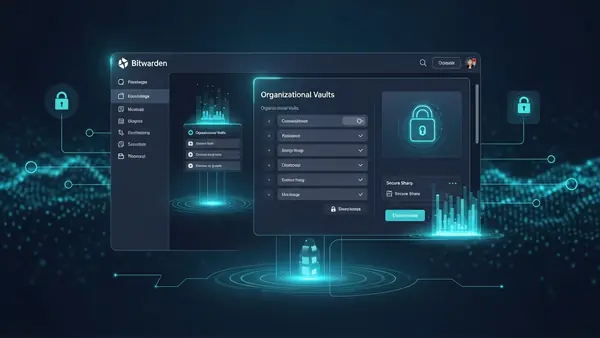
    Bitwarden open source password manager interface showing organizational vault and sharing options

    Bitwarden delivers enterprise-grade password management at a fraction of the cost of competitors. The open-source foundation means security researchers worldwide have audited the code, and the transparent development model builds trust with technical teams who are skeptical of closed-source security tools.

    For remote teams, Bitwarden’s collections feature provides granular control over credential sharing. You can organize passwords by department, project, or client, then grant access to specific team members without exposing your entire vault. The self-hosting option appeals to teams with strict data residency requirements—you can run Bitwarden on your own infrastructure and maintain complete control over where credentials are stored.

    The browser extension and mobile apps match the quality of more expensive competitors. Two-factor authentication support is comprehensive, including YubiKey Windows Login: The Easy Way to Log Into Windows 11 Without a Password integration for Windows machines. The emergency access feature lets you designate trusted team members who can request access to your vault after a waiting period—critical for remote teams where the bus factor is a real concern.

    Where Bitwarden trails 1Password is in polish and advanced admin features. The reporting tools are functional but basic, and the user interface feels more utilitarian than elegant. For technical teams who prioritize functionality over aesthetics, this isn’t a dealbreaker. For less technical teams, the learning curve is slightly steeper.

    Best for: Startups and small businesses (5-50 employees) where budget matters and your team has some technical sophistication. The free tier supports unlimited passwords for individuals, making it easy to pilot before committing to the paid business plan. If your team values open-source software and wants the option to self-host, Bitwarden is the clear choice.

    Keeper: Best for Enterprise Compliance and Audit Requirements

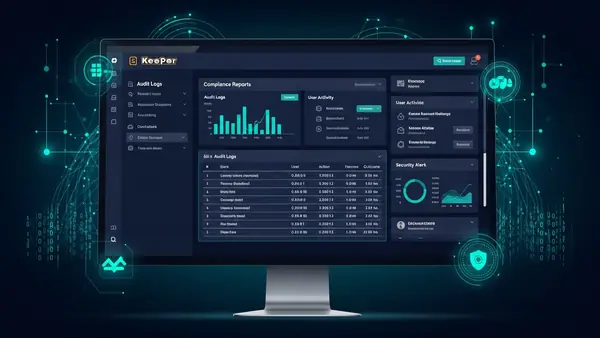
    Keeper Security password manager enterprise dashboard displaying detailed audit logs and compliance reports

    Keeper built its reputation on enterprise security, and it shows in the depth of compliance features. The audit and reporting capabilities exceed what most remote teams need, but if you’re in healthcare, finance, or another regulated industry, Keeper’s detailed logs and compliance reports become essential rather than excessive.

    The role-based access control system is the most sophisticated in this category. You can define custom roles with granular permissions, enforce different security policies for different teams, and require approval workflows for accessing high-privilege credentials. For remote teams handling sensitive client data or managing production infrastructure, these controls prevent the credential sprawl that plagues distributed organizations.

    Keeper’s BreachWatch continuously monitors the dark web for compromised credentials associated with your organization. When it finds a match, it alerts both the affected user and administrators, providing actionable intelligence rather than generic warnings. The encrypted messaging feature lets team members share sensitive information beyond just passwords—API keys, server credentials, and confidential notes stay encrypted end-to-end.

    The learning curve is steeper than 1Password or Bitwarden. The extensive feature set means more configuration upfront, and the interface assumes you understand concepts like zero-knowledge architecture and encrypted vault sharing. For teams with dedicated IT staff, this complexity enables powerful workflows. For small teams without technical resources, it can feel overwhelming.

    Best for: Enterprises (100+ employees) with compliance requirements like SOC 2, HIPAA, or GDPR. The detailed audit trails and advanced reporting justify the premium pricing when you need to demonstrate credential security to auditors or clients. Keeper Password Manager Review: Why This Analyst Chose It (2026) provides additional depth on why this analyst chose Keeper for enterprise deployments.

    Worth Considering: Dashlane and NordPass

    Dashlane offers excellent VPN integration and dark web monitoring, making it appealing for security-conscious remote teams. The automatic password changer can update credentials across multiple sites with one click—a time-saver when responding to breaches. However, the pricing is higher than 1Password without offering significantly better features for most remote team use cases. Best for teams that want VPN and password management in a single subscription.

    NordPass from the NordVPN team delivers solid fundamentals at competitive pricing. The XChaCha20 encryption is cutting-edge, and the interface is clean and approachable for non-technical users. The weakness is in admin features—the organizational controls lag behind 1Password and even Bitwarden. Best for very small remote teams (under 10 people) who prioritize ease of use over advanced management capabilities.

    Quick Comparison: Which Password Manager for Your Remote Team?

    Choose 1Password if: You need the best balance of security, usability, and admin controls. The Travel Mode feature is essential for teams with international members, and the polished experience reduces onboarding friction for remote hires.

    Choose Bitwarden if: Budget is a primary concern and your team has technical aptitude. The open-source model and self-hosting option provide transparency and control that closed-source alternatives can’t match.

    Choose Keeper if: You operate in a regulated industry and need detailed audit trails, advanced compliance reporting, and enterprise-grade role-based access controls. The premium pricing delivers premium features that enterprises actually use.

    Final Verdict by Use Case

    Most remote teams should start with 1Password—it’s the safest bet for organizations that need security without complexity. If you’re bootstrapping a startup and every dollar matters, Bitwarden delivers 90% of the functionality at 40% of the cost. Enterprises with compliance obligations should evaluate Keeper seriously; the advanced features become requirements rather than nice-to-haves when auditors start asking questions about credential security across your distributed workforce.

    Regardless of which solution you choose, pairing your password manager with YubiKey 5 NFC hardware keys for administrator accounts adds a critical layer of phishing resistance. Remote work has permanently changed the threat landscape—your password management strategy needs to evolve accordingly.

    Frequently Asked Questions

    What’s the best password manager for small remote teams under 10 people?

    Bitwarden offers the best value for small teams, with a free tier that supports unlimited passwords and a business plan that costs significantly less than competitors. The open-source foundation and straightforward interface make it ideal for teams without dedicated IT staff who still need secure credential sharing.

    Do remote teams really need a password manager, or can we use browser-saved passwords?

    Browser-saved passwords create serious security gaps for remote teams—they don’t sync across different browsers, provide no admin visibility into who has access to what, and make it impossible to revoke credentials when someone leaves. A proper password manager gives you centralized control, secure sharing, and audit trails that browser features simply can’t provide.

    Can password managers integrate with hardware security keys like YubiKey?

    Yes, all three top picks (1Password, Bitwarden, and Keeper) support hardware security keys for two-factor authentication. This is critical for protecting administrator accounts and high-privilege users in remote teams. The integration works seamlessly across desktop and mobile devices, adding phishing-resistant authentication without disrupting workflows.

    How do I migrate my remote team from shared spreadsheets to a password manager?

    All major password managers provide import tools that can convert spreadsheets into secure vaults. The process takes 30-60 minutes: export your spreadsheet as CSV, import it into the password manager, organize credentials into appropriate shared vaults, then grant team members access based on their roles. Schedule a brief training session to walk your team through the browser extension and mobile apps.

    What happens if someone on my remote team loses their master password?

    Most business password managers include account recovery features—1Password offers recovery keys, Bitwarden has emergency access, and Keeper provides account transfer capabilities. Set up these recovery mechanisms during onboarding, before someone actually needs them. The alternative is permanent loss of access to all stored credentials, which can be catastrophic for remote teams.

  • Executive Travel Security: Why Faraday Bags Are Mandatory for Protecting Corporate Assets (2026)

    Executive Travel Security: Why Faraday Bags Are Mandatory for Protecting Corporate Assets (2026)

    PacketMoat is reader-supported. When you buy through links on our site, we may earn an affiliate commission at no extra cost to you.

    The Intro: The “Digital Pocket” Threat When your executives travel, Faraday bags are the only defense against becoming walking targets. Airports, hotel lobbies, and conference centers are hunting grounds for data thieves. While most IT managers focus on securing the laptop screen, they forget the signals constantly being broadcast from your employee’s pockets.

    Your phone, your key fob, and even your passport are constantly transmitting data via Bluetooth, RFID, and NFC.

    A “Digital Pickpocket” can clone a hotel room key, skim a credit card, or track a phone’s location without ever touching the device.

    I tested the SLNT Privacy Sleeve not just as a travel accessory, but as a partial SCIF (Sensitive Compartmented Information Facility) for your pocket.

    The Business Case: Why Buy “The Bag”? You might think a signal-blocking bag is paranoia. It isn’t. It’s asset protection.

    • The Threat: “Juice Jacking” and RFID skimming are on the rise in major transit hubs.
    • The Liability: If a sales director’s phone is compromised at a conference, your client data is gone.
    • The Fix: A Faraday bag creates a “black hole” for signals. When the device is inside, it cannot be tracked, hacked, or pinged.

    Physical signal blocking is step one. Step two is ensuring that even if a device is accessed, the data remains locked behind a hardware security key.

    For the Fleet Manager: Yes, this prevents relay attacks on rental cars. But more importantly, it ensures that when your team goes “off the grid” for a sensitive meeting, they are actually off the grid.

    Executive Security FAQ: What You Need to Know

    “Will this block 5G signals?” Yes. High-quality Faraday bags (like the SLNT and Mission Darkness models listed below) are designed to block all signal frequencies between 10kHz and 30GHz. This includes 5G, 4G LTE, WiFi, Bluetooth, and RFID.

    “Can I still receive urgent calls?” No. That is the point. When your phone is in the bag, it is completely off the grid. It cannot be tracked, pinged, or called. We recommend executives use this during sensitive transit (airports, Ubers) or classified meetings. Once you are in a secure location, remove the phone to reconnect.

    “Is this TSA Approved?” Yes. Faraday bags are perfectly legal to carry through airport security. Simply place the bag (with your device inside) in the bin just like a laptop case. It does not trigger alarms, but it does protect your data while it sits on the conveyor belt.

    Top 3 Faraday Bags for Corporate Security (2026 Ranked)

    SLNT (Silent Pocket) Privacy Sleeve – The “Executive Choice”

    Best For: C-Suite Executives, Business Travel, & Client Meetings.

    The Verdict: This is the only option that belongs in a boardroom. Unlike tactical gear that looks like it belongs in a war zone, the SLNT sleeve looks like high-end office equipment. It features a patented magnetic closure, meaning you can slide your phone in and out silently during a meeting without the loud riiiip of Velcro.

    Protection Level: Blocks cellular, WiFi, GPS, and Bluetooth instantly.


    TICONN Faraday Bag – The “Fleet Standard”

    Best For: Bulk Deployment, Sales Fleets, & Rental Cars.

    The Verdict: If you are an Operations Manager needing to equip 50+ drivers with key fob protection, this is your ROI winner. It’s cost-effective and gets the job done.

    ⚠️ Warning: The Velcro wears out after 6-9 months of heavy use, so we recommend buying these in bulk packs for easy replacement.


    Mission Darkness – The “Heavy Duty” Alternative

    Best For: Industrial Sites & Field Ops.

    The Verdict: Mission Darkness makes incredible military-grade gear. If your work environment involves mud, dirt, or extreme conditions, their “TitanRF” fabric is unbeatable. However, for standard business travel, it is often overkill and bulkier than necessary.

    Check Price on Amazon

    Don’t wait for a data breach. Equip your team with the right gear today and secure your company’s future.

  • Phishing-Proof Your Remote Team: Why the YubiKey 5 NFC is Mandatory for SMB Security (2026 ROI Guide)

    Phishing-Proof Your Remote Team: Why the YubiKey 5 NFC is Mandatory for SMB Security (2026 ROI Guide)

    PacketMoat is reader-supported. When you buy through links on our site, we may earn an affiliate commission at no extra cost to you.

    The Intro If you manage a remote team, your biggest liability isn’t your firewall—it’s your employee’s password. In 2025, 82% of corporate breaches involved a human element, usually a stolen credential.

    You can spend $5,000 a month on fancy monitoring software, or you can spend $50 once to physically lock the front door.

    I tested the YubiKey 5 NFC not as a gadget, but as a business asset. My conclusion? It is the single highest-ROI security investment a small business can make. Here is why every employee laptop needs one in the USB port.

    Why “Free” 2FA is Costing You Money Most businesses rely on SMS codes or Authenticator apps for 2-Factor Authentication. The problem? They are phishable. If an employee is tricked into typing that code into a fake login page, you are breached.

    The YubiKey is different. It requires physical presence. Even if a hacker clones your employee’s SIM card or steals their password, they cannot log in unless they physically steal the key from your employee’s keychain.

    • The Math: Average cost of a ransomware cleanup: $182,000.
    • The Solution: Cost of a YubiKey 5 NFC: ~$55.
    • The Verdict: This isn’t an expense; it’s insurance.

    How to Deploy YubiKeys for a Remote Team (Google Workspace)

    Many business owners hesitate because they think hardware keys are hard to manage. They aren’t. If you use Google Workspace (Gmail for Business), you can enforce this in minutes.

    Purchase in Pairs: Always buy two keys per employee (Primary + Backup).

    Enforce 2-Step Verification: Go to your Google Admin Console > Security > Authentication > 2-Step Verification.

    The “Any Hardware” Rule: Check the box for “Allow security keys.”

    Registration: Have your employees plug in the key and tap the gold contact when prompted during their next login.

    Once registered, that account is virtually unhackable from a remote location.

    Technical Breakdown: Why the “5 NFC” Series?

    As a business owner, you might see cheaper keys on Amazon. Do not buy them for your employees. The YubiKey 5 Series is the industry standard for a reason. Here are the specs that matter for your IT security:

    • NFC Capability: This is non-negotiable. It allows employees to tap the key against their company iPhone or Android device to log in remotely. The cheaper “Security Key” series often lacks this.
    • Protocol Support: The 5 NFC supports FIDO2, U2F, OTP, and Smart Card protocols. Translation: It works with almost everything—Google Workspace, AWS, Salesforce, and LastPass.
    • Durability: These keys are crush-resistant and water-resistant. If an employee drops one in the parking lot or spills coffee on it, it still works.

    Common Employee Questions (FAQ) When you hand these out, your team might push back. Here is how to answer them:

    “What if I lose my key?” This is why we buy two. You will have a backup key stored in the safe. If you lose your primary key, we revoke its access instantly from the Admin Console and issue you the spare.

    “Is this tracking my location?” No. The YubiKey has no battery, no GPS, and no Wi-Fi. It is a passive device that only wakes up when plugged in. It cannot track you.

    “Do I have to plug it in every time?” No. You can set up “Trusted Devices” in Google Workspace so you only need to use the key once every 30 days, or when logging in from a new location (like a hotel).

    The Verdict: Is it Worth the $55?

    If you have a remote team, you cannot afford not to have these. The peace of mind of knowing that a phishing email cannot breach your company is worth ten times the price.

    Where to Buy for Business:

    Protect your revenue. Lock the door.