On the evening of March 26, 2026, Anthropic — the company behind the Claude AI model — accidentally exposed internal documents revealing an unreleased AI system called Claude Mythos. Within hours, cybersecurity stocks were in freefall and the security community was scrambling to understand what this means.
As a CISSP-certified professional, I’ve spent my career assessing risk. And this story has layers that most of the headlines are missing. Let me break down what actually happened, what Mythos can reportedly do, and what it means for anyone working in cybersecurity — or depending on it.
What Happened
A misconfiguration in Anthropic’s content management system left close to 3,000 unpublished assets sitting in a publicly accessible, unencrypted data store. Among those assets was a draft blog post describing a new AI model called Claude Mythos, which Anthropic internally refers to as part of a new tier codenamed “Capybara.”
The exposed data was independently discovered by two cybersecurity researchers — Roy Paz from LayerX Security and Alexandre Pauwels from the University of Cambridge. Fortune reviewed the documents and contacted Anthropic, which then secured the data on Thursday evening.
An Anthropic spokesperson confirmed the model exists and attributed the leak to “human error in the CMS configuration,” adding that the issue was “unrelated to Claude, Cowork, or any Anthropic AI tools.”
Let’s pause on that for a moment. The company building what it describes as the most powerful AI model in the world left nearly 3,000 internal assets exposed because of a CMS misconfiguration. That detail matters — and I’ll come back to it.
What Claude Mythos Actually Is
Based on the leaked draft and Anthropic’s confirmation, here’s what we know.
Claude Mythos sits in a new model tier above Anthropic’s current lineup. Today, Anthropic offers three sizes: Haiku (lightweight), Sonnet (mid-range), and Opus (their most capable). Capybara — the tier Mythos belongs to — is larger, more capable, and more expensive than Opus.
Anthropic describes the model as “a step change” in AI performance and “the most capable we’ve built to date.” The leaked draft goes further, calling it “by far the most powerful AI model we’ve ever developed.”
According to the leaked benchmarks, Mythos significantly outperforms Claude Opus 4.6 in three key areas: software coding, academic reasoning, and cybersecurity.
That last one is what triggered the market reaction.
The Cybersecurity Capabilities
This is where it gets serious.
The leaked draft states that Mythos is “currently far ahead of any other AI model in cyber capabilities.” It reportedly can identify software vulnerabilities rapidly, assess attack surfaces across large systems, and support detailed security analysis at a level no existing AI system matches.
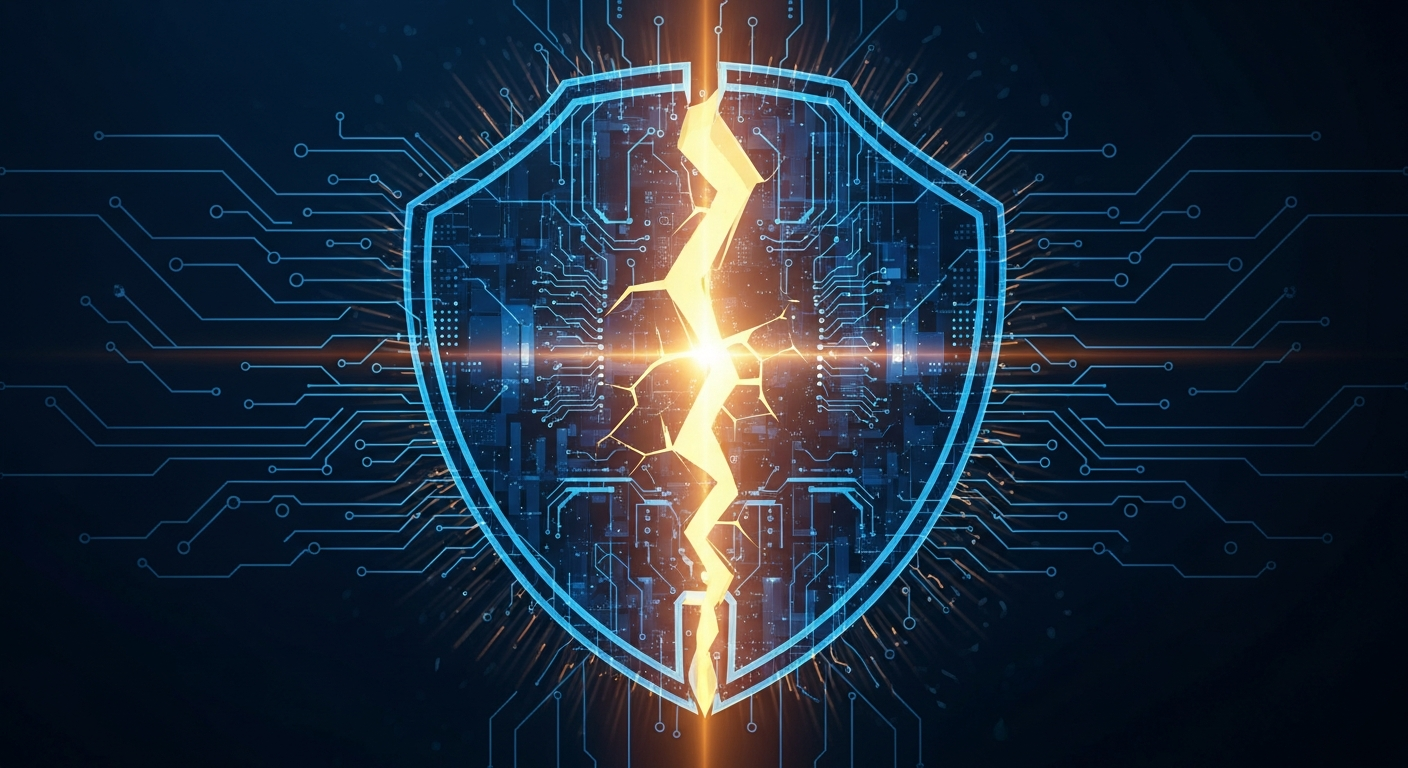
But the draft also includes a warning that should get every security professional’s attention. Anthropic’s own internal language says Mythos “presages an upcoming wave of models that can exploit vulnerabilities in ways that far outpace the efforts of defenders.”
Read that again. The company that built this model is telling us — in their own words — that the defender-attacker gap is about to widen, and not in the defenders’ favor.
This isn’t speculation from an outsider. This is the model’s creator flagging it as an unprecedented cybersecurity risk.
Why Cybersecurity Stocks Crashed
The market reaction was immediate and severe. On Friday morning, CrowdStrike dropped roughly 7%. Palo Alto Networks fell about 6%. Zscaler declined approximately 4.5%. Okta, SentinelOne, Fortinet, and Cloudflare all lost between 3% and 4%. The Global X Cybersecurity ETF dropped 2.7%, and the iShares Expanded Tech-Software Sector ETF fell nearly 3%, according to market data as of Friday morning, March 27.
The sell-off logic is straightforward: if AI models can discover and exploit vulnerabilities faster than traditional security tools can detect and patch them, the value proposition of existing cybersecurity vendors takes a hit. Investors are pricing in the possibility that AI companies could eat into the security market.
That said, not everyone agrees with the panic. Wedbush Securities analyst Dan Ives called the reaction a bullish signal, arguing that AI entering the cybersecurity space validates the importance of the sector rather than undermining it. His take: Claude Mythos won’t replace vendors like CrowdStrike and Palo Alto — but it speaks to the enormous opportunity ahead for companies that integrate AI into their defense capabilities.
From a CISSP perspective, I lean toward Ives’ read here. AI doesn’t eliminate the need for security infrastructure. It changes the speed of the game. Organizations that adopt AI-augmented defenses will have an advantage. Those that don’t will fall further behind.
The Irony No One Is Talking About
Here’s what stands out to me as a security professional.
Anthropic built a model so advanced in cybersecurity that it could reportedly find vulnerabilities faster than any system in existence. And then they exposed it — along with 3,000 internal documents — because someone misconfigured a CMS.
This wasn’t a sophisticated attack. There was no zero-day exploit, no nation-state adversary, no supply chain compromise. It was a configuration error. The kind of basic security hygiene failure that every CISSP studies for in the ISC2 exam.
It’s a powerful reminder that the biggest cybersecurity risks are rarely the most complex ones. Misconfigured storage, unencrypted databases, publicly accessible assets — these mundane failures cause more breaches than any advanced persistent threat.
If the company developing the most advanced AI security capabilities in the world can’t prevent a CMS misconfiguration from leaking its crown jewels, it reinforces a truth we already knew: technology alone doesn’t solve security problems. Process, governance, and operational discipline do.
What Defenders Should Actually Be Thinking About
Setting aside the market panic, here’s what matters for security practitioners.
The attacker-defender asymmetry is accelerating. AI models with strong cybersecurity capabilities are going to be available — legally or otherwise — to threat actors. The time between vulnerability discovery and exploitation is going to compress further. Patch management windows that were already too slow are about to become dangerously inadequate.
AI-augmented defense is no longer optional. If adversaries are using AI to find and exploit weaknesses at machine speed, manual security operations can’t keep pace. Organizations need to integrate AI into vulnerability management, detection engineering, threat hunting, and incident response workflows now — not after the next breach.
Fundamentals still matter most. The irony of this leak proves it. Configuration management, access controls, data classification, encryption at rest — these aren’t exciting, but they’re what prevent the majority of real-world incidents. No AI model can compensate for failing to lock down a public-facing data store.
Expect a new class of AI-specific security tools. Anthropic is already planning to limit initial Mythos access to defensive cybersecurity organizations. That’s the beginning of a market shift where AI vendors and security vendors converge. Watch for partnerships, acquisitions, and new product categories emerging in the next 12 to 18 months.
Anthropic’s Approach: Cautious by Design
To Anthropic’s credit, the leaked materials show they’re approaching this release with significant caution. The plan is to limit initial access to select organizations focused on cybersecurity defense. They’re working on reducing the model’s operational costs before a broader rollout. And they’ve explicitly framed the early release around strengthening defensive capabilities rather than general availability.
Whether that caution survives commercial pressure remains to be seen. But the approach is responsible, and it’s more transparency about AI risk than most companies in this space offer — even if that transparency was, in this case, accidental.
The Bottom Line
Claude Mythos is likely a real capability breakthrough. The cybersecurity implications are significant and worth taking seriously. But the stock market panic is probably an overreaction in the short term.
The companies that will thrive in this new landscape are the ones already integrating AI into their defensive capabilities. The ones that will struggle are those still relying on manual processes and hoping the threat environment stays the same.
And if you take one lesson from this entire episode, let it be this: the most advanced AI in the world was exposed by a misconfigured CMS. Security fundamentals aren’t glamorous, but they’re still the difference between keeping your data private and watching it show up on Fortune’s front page.
Tye is a CISSP-certified IT professional who covers cybersecurity for real people. Follow PacketMoat for more security analysis without the marketing fluff.