PacketMoat is reader-supported. When you buy through links on our site, we may earn an affiliate commission at no extra cost to you.
Last month, I walked out of Microcenter with a shiny new PC, excited to set up my fresh Windows installation. Like many users, I made the mistake of browsing as administrator right out of the box.. For the first six hours, I was in digital heaven – no more annoying User Account Control (UAC) prompts interrupting my workflow, no password requests when installing software, and seamless system modifications.
Then a cybersecurity professional friend dropped by and immediately spotted my rookie mistake. “You’re browsing the internet with admin credentials?” he asked, visibly concerned. “You know better than that.” His words hit me like a cold splash of reality, and I quickly realized I had fallen into one of the most dangerous traps in Windows security.
Understanding the UAC: Your First Line of Defense
If you’ve never encountered the User Account Control (UAC) prompt – that pop-up window requesting administrator permissions when installing software or making system changes – you’re likely making the same mistake I was. UAC serves as a critical security barrier, forcing you to consciously approve potentially dangerous actions before they execute.
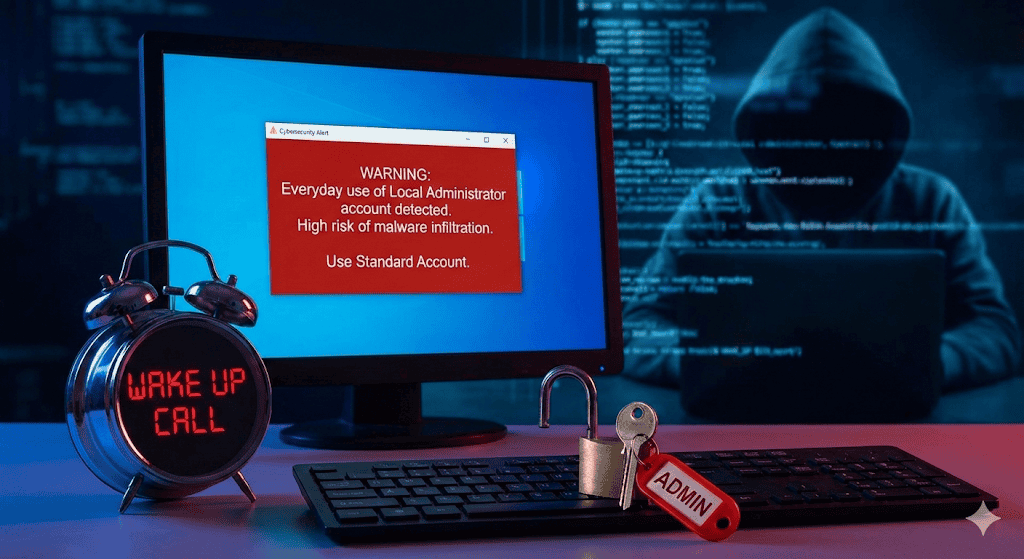
When you operate under an Administrator account full-time, UAC either doesn’t appear or automatically grants permissions without your explicit consent. This seemingly convenient setup creates a massive security vulnerability that cybercriminals actively exploit.
This is the hidden danger of browsing as administrator—the UAC doesn’t warn you when it should.
Why Browsing as Administrator is a Gift to Hackers
Cybercriminals understand human nature: we gravitate toward convenience, often at the expense of security. When you run Windows with administrative privileges for everyday tasks, you’re essentially giving hackers a golden ticket to your entire system.
Here’s the terrifying reality: all it takes is one malicious email attachment, one infected download from a questionable source, or one unpatched vulnerability for attackers to completely compromise your machine. When malware executes under Administrator privileges, it gains unrestricted access to:
- System files and registry entries
- Other user accounts and their data
- Network resources and shared drives
- Installed software and security applications
- Sensitive documents and personal information
How Administrator-Level Attacks Devastate Your PC
When hackers successfully exploit a system running under Administrator credentials, the damage can be catastrophic. Malware operating with admin privileges can:
Install Persistent Backdoors: Attackers can embed deep-level access tools that survive system restarts and security scans, maintaining long-term control over your computer.
Disable Security Software: Administrative access allows malware to turn off antivirus programs, firewalls, and Windows Defender, leaving your system completely exposed.
Access Encrypted Data: Admin-level malware can potentially bypass file encryption and access supposedly secure documents.
Spread Across Networks: If your compromised admin account connects to business networks or shared resources, the infection can spread to other systems.
Creating a Standard User Account: Your Security Lifeline
Protecting your system requires creating and using a standard user account for daily activities. Here’s how to set this up properly:
- Open Settings: Press Windows + I and navigate to “Accounts” > “Family & other users”
- Add Account: Click “Add someone else to this PC”
- Create Local Account: Select “I don’t have this person’s sign-in information,” then “Add a user without a Microsoft account”
- Configure Details: Enter username and password for your new standard account
- Set Account Type: Ensure the account type remains “Standard User” (not Administrator)
Once created, log out of your Administrator account and sign in with your new standard user profile for all everyday activities. Keep the Administrator account strictly for system maintenance, software installations, and troubleshooting.
Conclusion: Security Over Convenience
While browsing as administrator feels convenient, the security risks far outweigh the benefits., the security risks far outweigh the benefits. By creating and using a standard user account, you maintain that crucial UAC protection barrier while significantly reducing your attack surface. Remember: in cybersecurity, a few extra password prompts can save you from devastating data breaches, identity theft, and complete system compromise.
Now that you have separated your accounts, you need to lock that Admin account down tight. Read my [YubiKey 5 NFC Review] to see how to secure it with a hardware key.
Your future self will thank you for choosing security over convenience.

Tye is a CISSP-certified cybersecurity analyst with over 25 years in IT and 15 years specializing in network defense and threat intelligence. He built PacketMoat to bring enterprise-grade security knowledge to everyday people and small businesses.