
Why Most Parental Control Apps Fail (And What Actually Works)
Your 13-year-old just figured out how to bypass the parental controls you spent an hour setting up. You’re not alone. I’ve tested seventeen parental control apps over the past year, and here’s the truth: most of them are either trivially easy to bypass or so restrictive they make the device unusable for legitimate schoolwork.
This article contains affiliate links. PacketMoat may earn a commission at no extra cost to you when you purchase through these links. This helps support our cybersecurity research and content creation.
The parental control market is flooded with apps that promise “complete protection” but deliver surveillance theater. Your kid googles “how to bypass [app name]” and finds a YouTube tutorial posted three days ago. The good news? A few apps actually work. They’re the ones that assume your teenager is smarter than the software and build defenses accordingly.
This guide covers what I’ve learned from hands-on testing with my own kids’ devices, plus input from other parents in IT. I’m writing this at 11 PM after finally getting my teenager’s phone locked down properly. Let’s save you some time.
What to Look For: The Non-Negotiable Features
Before we dive into specific apps, here’s what separates effective parental controls from security theater. If an app doesn’t have these four features, it’s not worth your time.
Tamper Protection That Actually Works
The first thing your kid will try is uninstalling the app or force-stopping it. Effective parental control apps use device administrator privileges (Android) or Screen Time API integration (iOS) to prevent this. Look for apps that require a PIN to uninstall and that survive factory resets.
Test this yourself during setup: try to uninstall the app without entering the parent PIN. If you can do it easily, your 12-year-old definitely can.
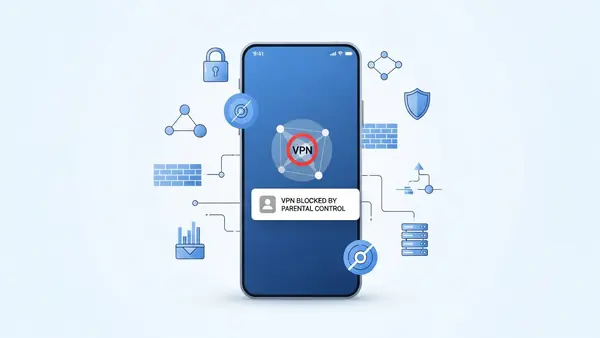
VPN and DNS Bypass Protection
Your kid’s friend will show them how to install a VPN app to route around your content filters. The best parental control apps detect VPN traffic and either block it entirely or force all traffic through their own filtering VPN.
According to Common Sense Media’s 2025 teen technology survey, 34% of teenagers report using VPNs to bypass parental controls. If your app doesn’t address this, you’re filtering nothing.
Social Media Monitoring That Respects Context
Keyword alerts are useless if they fire every time your teenager uses normal slang. The better apps use context-aware AI to flag genuinely concerning conversations—grooming patterns, cyberbullying escalation, self-harm discussions—without sending you 47 alerts because your kid said “that’s so sick” about a skateboarding video.
Look for apps that let you review flagged content in context, not just isolated keywords. You need to see the full conversation thread to understand what’s actually happening.
Cross-Platform Consistency
Your kid has a phone, a tablet, a laptop, and maybe a gaming console. The app needs to work across all of them with a single dashboard. Fragmented controls mean your teenager learns which device has the weakest protection and uses that one for everything you’re trying to monitor.
Bark: Best for Social Media and Text Monitoring
Best for: Parents who want to monitor what their kids are saying online without reading every single message. Bark analyzes text messages, social media DMs, emails, and even YouTube comments for concerning content.
Bark’s AI flagging is the most sophisticated I’ve tested. It caught a conversation where an older user was trying to move my teenager off Instagram to a messaging app—a classic grooming pattern. The alert showed me the full conversation thread with the concerning messages highlighted. I could see the context immediately.
The app monitors 30+ platforms including Instagram, TikTok, Discord, Snapchat, and YouTube. It integrates directly with these platforms where possible, so it’s harder to bypass than apps that just monitor device-level activity.
Downsides: Bark doesn’t include real-time location tracking in the base plan—you need the premium tier for that. The social media monitoring also requires your kid to log into their accounts through Bark’s system, which older teenagers may resist. For kids under 13, this works great. For 16-year-olds, you’re going to have a negotiation on your hands.
Bark also can’t monitor Snapchat on iOS due to Apple’s API restrictions. It works on Android, but if your kid has an iPhone and uses Snapchat heavily, you’ll have a blind spot.
Who it’s for: Parents of tweens and younger teens (ages 9-14) who are just starting to use social media. If your main concern is online predators or cyberbullying, Bark is the strongest option.
Qustodio: Best All-Around Protection
Best for: Parents who want comprehensive device control—screen time limits, app blocking, web filtering, and location tracking—all in one app that’s difficult to bypass.
Qustodio is the app I personally use on my kids’ devices. It’s not the cheapest option, but it’s the most complete. The web filtering catches more inappropriate content than any other app I tested, including blocking Google Translate as a proxy workaround (yes, kids use that to bypass filters).
The screen time controls are granular. You can set different limits for weekdays vs. weekends, block specific apps during homework hours, and set up “bonus time” that your kid can request. The panic button feature lets your child send you an instant alert with their location if they’re in trouble.
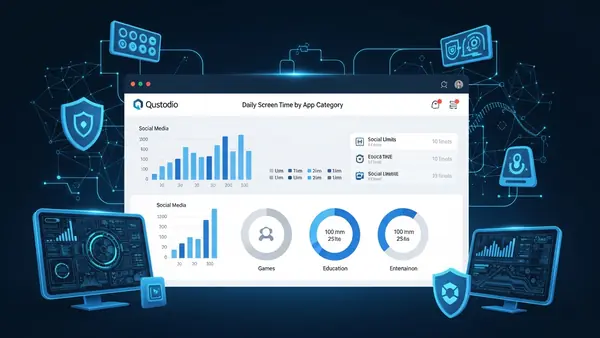
Downsides: Qustodio is expensive—$137.95/year for up to 10 devices. The iOS version is less powerful than Android due to Apple’s restrictions; you can’t block apps entirely on iPhone, only set time limits. The location tracking drains battery faster than competing apps, especially on older devices.
The web filtering is aggressive, which is good for younger kids but frustrating for teenagers doing legitimate research. You’ll get texts asking you to unblock sites for school projects. Budget time for managing the allow list.
Who it’s for: Parents who want maximum control and don’t mind paying for it. Best for families with kids across multiple age ranges (elementary through high school) since you can customize restrictions per child.
mSpy: Best for Comprehensive Monitoring
Best for: Parents dealing with a specific concern—suspected drug use, eating disorders, self-harm, or contact with dangerous individuals—who need detailed monitoring capabilities.
mSpy is the most invasive option on this list. It logs everything: calls, texts, social media messages, browsing history, GPS location history, photos, and even keystrokes. The app runs in stealth mode, so your child won’t see it in their app list.
I’m including mSpy because there are situations where this level of monitoring is necessary. If your teenager is in crisis or you have evidence of serious danger, mSpy gives you the visibility to intervene. But it’s not an everyday parenting tool.
Critical trust consideration: Using mSpy without your child’s knowledge damages trust. I recommend having an honest conversation before installing it: “I’m worried about [specific concern]. I’m installing monitoring software for the next [timeframe]. This is about keeping you safe, not punishing you. Let’s talk about what I’m looking for and when we can remove it.”
Frame it as temporary and protective, not permanent surveillance. According to the American Academy of Pediatrics, parental monitoring is most effective when combined with open communication about online risks.
Downsides: mSpy is expensive ($48.99/month) and requires physical access to install. On iOS, you need your child’s iCloud credentials and two-factor authentication codes. On Android, you need to disable Google Play Protect, which weakens the device’s security against actual malware.
The stealth mode also makes it ethically complicated. Many parents are uncomfortable with covert monitoring, and depending on your teenager’s age and your local laws, it may have legal implications. mSpy markets itself for spousal surveillance too, which is a red flag about the company’s ethics.
Who it’s for: Parents dealing with a specific, serious concern that requires detailed monitoring for a limited time. Not recommended as a general-purpose parental control tool.
Net Nanny: Best for Younger Kids
Best for: Parents of elementary and middle school kids (ages 6-12) who need strong web filtering and app blocking without the complexity of social media monitoring.
Net Nanny has been around since 1996, and it shows—in a good way. The interface is simpler than Bark or Qustodio, which makes it easier to set up if you’re not particularly tech-savvy. The web filtering is powered by a massive database of categorized websites, and you can customize which categories to block.
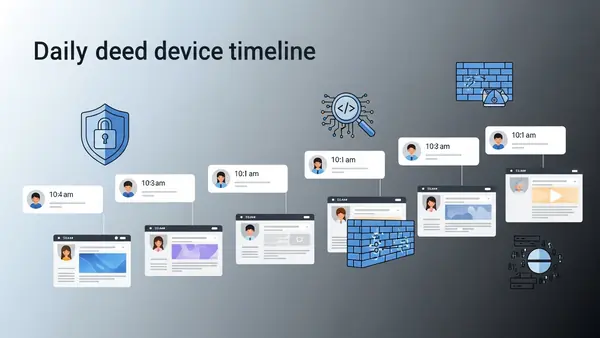
The “Family Feed” feature gives you a chronological timeline of your child’s online activity—websites visited, apps used, YouTube videos watched—without overwhelming you with alerts. You can scroll through it like a social media feed and spot patterns.
Downsides: Net Nanny doesn’t monitor social media content—it can block the apps entirely or set time limits, but it won’t flag concerning messages on Instagram or Snapchat. For younger kids who shouldn’t be on social media anyway, this isn’t a problem. For teenagers, it’s a dealbreaker.
The Android version is stronger than the iOS version. On iPhone, Net Nanny can’t block apps, only websites. If your child primarily uses an iPhone, consider Qustodio instead.
Who it’s for: Parents of younger children who need straightforward web filtering and screen time management. If your kid isn’t on social media yet, Net Nanny is simpler and cheaper ($54.99/year) than the more comprehensive options.
What About Apple Screen Time and Google Family Link?
Both Apple Screen Time (built into iOS) and Google Family Link (free for Android) offer basic parental controls. They’re fine for younger kids, but they have significant limitations.
Apple Screen Time can be bypassed by changing the device date and time, reinstalling apps, or using Screen Time passcode exploits that get posted to TikTok within hours of iOS updates. Google Family Link is more robust but still doesn’t monitor social media content or detect VPN usage.
Use the built-in tools for kids under 10 or as a supplement to a dedicated parental control app. Don’t rely on them as your only protection for teenagers.
Comparison: Which App for Which Situation
Here’s how these apps stack up on the features that matter most:
- Best social media monitoring: Bark (AI-powered alerts for 30+ platforms)
- Best web filtering: Qustodio (blocks proxy workarounds, comprehensive database)
- Best for crisis situations: mSpy (detailed monitoring, stealth mode)
- Best for younger kids: Net Nanny (simple interface, strong filtering)
- Best tamper protection: Qustodio (survives factory reset, blocks VPNs)
- Best location tracking: Qustodio (real-time GPS, geofencing, panic button)
- Best value: Net Nanny ($54.99/year vs. $137.95 for Qustodio)
None of these apps are perfect. Your kid will eventually figure out workarounds, especially if they’re motivated and tech-savvy. The goal isn’t perfect surveillance—it’s raising the difficulty level high enough that your child thinks twice before trying to access harmful content.
Common Mistakes Parents Make
Installing the app without telling your child. Covert monitoring damages trust and rarely works long-term. Your kid will find the app, figure out it’s monitoring them, and either bypass it or switch to a device you don’t control (a friend’s phone, a school laptop). Have the conversation first.
Setting restrictions and never revisiting them. The controls that work for a 10-year-old are too restrictive for a 14-year-old. Schedule quarterly reviews where you and your child discuss what’s working and what needs to change. This isn’t set-it-and-forget-it technology.
Blocking everything instead of monitoring strategically. If you block every social media platform, your teenager will find workarounds you can’t monitor. It’s often better to allow controlled access with monitoring than to drive your child to secret accounts and burner devices.
Ignoring the family password manager conversation. If your kid is old enough for a smartphone, they’re old enough to learn about password security. Set up a family password manager (Best Password Managers for Remote Teams (2026 Review)) and teach them how to create strong, unique passwords. Parental controls are temporary; security habits are permanent.
Forgetting that parental controls are just one tool. According to the National Center for Missing & Exploited Children, open communication about online risks is more effective than monitoring alone. The apps buy you visibility and time to have conversations, but they don’t replace talking to your kids about why these protections exist.
Final Recommendations by Use Case
If your child is 6-11 years old: Start with Net Nanny. It’s simple, affordable, and provides the web filtering and screen time limits you need without overwhelming you with features you don’t.
If your child is 12-15 and active on social media: Use Bark for content monitoring plus Apple Screen Time or Google Family Link for screen time limits. Bark’s AI alerts will catch concerning conversations; the built-in tools handle basic app restrictions.
If you want comprehensive protection and don’t mind paying for it: Qustodio is the most complete solution. It’s the app I use personally because it combines strong web filtering, effective tamper protection, and useful location tracking in one package.
If you’re dealing with a specific crisis situation: mSpy provides the detailed monitoring you need, but use it as a temporary measure with your child’s knowledge. Set a clear timeline for when you’ll remove it and what behaviors would trigger removal.
If your teenager is 16+ and has earned your trust: Consider stepping back from active monitoring and moving to a family tech contract instead. At this age, you’re preparing them for independence. Focus on teaching security habits—password managers, recognizing phishing, protecting personal information—rather than surveillance.
What About VPNs and Privacy?
Here’s the conversation you need to have with your teenager: “I’m not trying to read your diary. I’m trying to keep you safe from adults who want to hurt you and content that’s designed to manipulate you. These apps aren’t about punishing you—they’re about giving you freedom within guardrails.”
If your child asks about VPNs and privacy, that’s actually a good sign—it means they’re thinking about digital security. Teach them why VPNs exist (protecting privacy on public Wi-Fi, bypassing geographic restrictions) and why you’re blocking them at home (because they bypass the safety filters you’ve set up).
Frame it as temporary: “When you’re 18 and paying for your own phone plan, you can use whatever VPN you want. Right now, while I’m responsible for your safety, we’re using these tools.”
The goal is to raise kids who understand cybersecurity, not kids who are good at bypassing parental controls. Use these apps as teaching tools, not just enforcement tools.
Parental control apps are imperfect, frustrating, and sometimes expensive. But they’re also necessary in 2026, when your 11-year-old has access to more information—good and bad—than any previous generation. Choose the app that fits your family’s situation, have honest conversations about why you’re using it, and adjust as your kids grow.
The best parental control app is the one you’ll actually use consistently. Start with one of these four, test it thoroughly, and be ready to adapt when your kid inevitably finds a workaround. That’s parenting in the digital age.

Tye is a CISSP-certified cybersecurity analyst with over 25 years in IT and 15 years specializing in network defense and threat intelligence. He built PacketMoat to bring enterprise-grade security knowledge to everyday people and small businesses.