What You’ll Learn (And Why This Matters Right Now)
Your kid just got their first Android phone. Or maybe they’ve had one for a while, and you’re realizing you have no idea what they’re doing on it at 11 PM on a school night.
Google Family Link is Android’s built-in parental control system. It’s free, it’s surprisingly powerful, and it works on any Android device running version 7.0 or newer. This guide walks you through the complete setup—from creating the family group to locking down app permissions—before your teenager figures out the workarounds.
Here’s what we’re covering: creating supervised accounts, setting screen time limits, approving app downloads, filtering content, tracking location, and the common mistakes that let kids bypass everything you just configured. If you’ve got 30 minutes and your kid’s phone, you can have this done before dinner.
What You Need Before You Start
Make sure you have these ready:
- Your own Android or iOS device with the Family Link app installed (download from Google Play or App Store)
- Your child’s Android phone or tablet (Android 7.0 or newer)
- Your Google account credentials
- Your child’s birthdate (Google uses this to determine age-appropriate restrictions)
- 15-30 minutes of uninterrupted time—you’ll need your kid present for part of this
One critical note: If your child already has a Google account and they’re under 13, you’ll need to supervise their existing account rather than create a new one. Google changed this policy in 2024 to prevent kids from creating unsupervised accounts. If they’re 13 or older, they can choose whether to accept supervision (good luck with that conversation).
Step 1: Install Family Link on Your Phone
Download “Google Family Link for parents” from the Google Play Store or Apple App Store on your device. Yes, it works cross-platform—you can manage an Android phone from an iPhone.
Open the app and tap “Get Started.” Sign in with your Google account—this will be the parent/manager account for the family group.
The app will ask if your child has a Google account already. If they’re under 13 and don’t have one, select “No.” If they already have an account (even if they set it up themselves), select “Yes” and you’ll go through the supervision process instead.
Step 2: Create Your Child’s Supervised Google Account
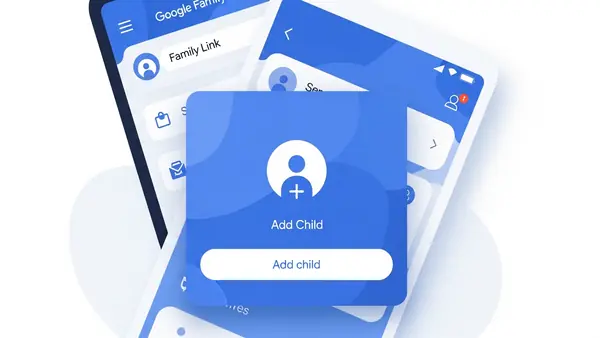
If your child doesn’t have a Google account yet, Family Link will walk you through creating one. You’ll need:
- Their first and last name
- Their birthdate (be honest—Google uses this for age-appropriate content filtering)
- A username (this becomes their Gmail address)
- A password (you’ll set this, then share it with your child)
Google will ask for parental consent. You’ll need to verify your identity with a credit card (they charge and immediately refund $0.30) or by providing a government ID photo. This is required by COPPA (Children’s Online Privacy Protection Act) for kids under 13.
Once the account is created, write down the username and password. You’ll need to enter this on your child’s device in the next step.
Step 3: Set Up Family Link on Your Child’s Device
Now grab your kid’s phone. If it’s brand new, you’ll do this during the initial Android setup. If they’ve been using it already, you’ll need to add the supervised account.
For a new device: During Android setup, when it asks you to sign in with a Google account, enter the supervised account credentials you just created. Android will detect it’s a child account and automatically prompt you to finish Family Link setup.
For an existing device: Open Settings > Google > Parental controls > Get started. Sign in with the child account credentials. The device will connect to your parent account and download restrictions.
You’ll see a code on your child’s device. Open the Family Link app on your phone and enter this code to link the devices. This takes 2-3 minutes—don’t close either app during this process.
Step 4: Configure Screen Time Limits
This is where you actually set the rules. Open the Family Link app on your phone, tap your child’s name, then “Controls.”
Daily limits: Tap “Daily limit” and set the maximum hours per day. When time runs out, the device locks except for parent-approved apps (you’ll configure those next). Limits reset at midnight.
Bedtime: Tap “Bedtime” and set a time range when the device locks completely. During bedtime hours, your kid can only make emergency calls. A common setup: 9 PM to 7 AM on school nights, 10 PM to 8 AM on weekends.
Here’s the thing: these limits apply to the entire device, not individual apps. If you set a 2-hour daily limit, that’s 2 hours total across YouTube, games, messaging—everything. Plan accordingly.
One trick: you can grant “bonus time” on the fly from your parent app. Your kid can also request more time, which sends you a notification. This is useful for homework that runs long or when they’re video chatting with grandparents.
Step 5: Lock Down App Downloads and Permissions
By default, Family Link requires your approval for every app your child tries to download from the Google Play Store. Here’s how to configure this:
In the Family Link app, go to Controls > Google Play. You’ll see three options:
- All content: Your child can download anything without approval (don’t choose this)
- Require approval for all content: You approve every app, even free ones (recommended for kids under 10)
- Allow certain content ratings: Apps rated for their age are auto-approved, mature apps require your approval (good middle ground for 10-13)
When your child tries to download an app, you get a notification. You can review the app’s description, permissions, and ratings before approving or blocking it. Blocked apps don’t show up in their Play Store search results anymore.
{{EXPERIENCE: Describe the most common apps kids request and which ones you’ve blocked/approved and why}}
Step 6: Set Content Filters for Chrome and YouTube
Google Family Link integrates with Chrome and YouTube to filter age-inappropriate content. Here’s how to enable it:
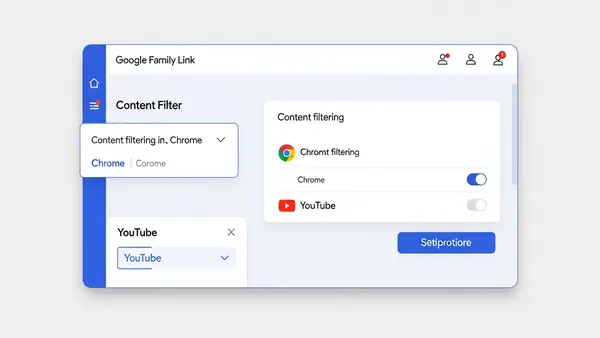
Chrome filtering: In Family Link, go to Controls > Filters on Google Chrome. You have three options: “Try to block mature sites” (uses Google’s SafeSearch), “Only allow certain sites” (whitelist mode—extremely restrictive), or “Allow all sites” (no filtering). For most families, “Try to block mature sites” is the right balance.
Important: Chrome filtering only works in the Chrome browser. If your kid downloads Firefox, Brave, or another browser, these filters don’t apply. This is why app approval (Step 5) matters—block alternative browsers during the approval process.
YouTube restrictions: Go to Controls > YouTube. You can choose between YouTube Kids (heavily filtered, designed for under-8), Supervised YouTube (filtered based on age), or standard YouTube with Restricted Mode (blocks flagged mature content but isn’t foolproof).
According to Common Sense Media’s 2025 research, YouTube is the number one platform where kids encounter inappropriate content. The supervised experience isn’t perfect—it relies on Google’s automated content classification—but it’s significantly better than unrestricted access.
Step 7: Configure Location Tracking
Family Link includes location tracking if your child’s device has GPS and location services enabled. To turn this on:
In the Family Link app, tap your child’s profile, then “Location.” Toggle on “Show location.” You’ll see their current location on a map, updated in near-real-time when their device is online.
This feature is controversial. Some parents feel it’s essential for safety (knowing your kid made it to school). Others feel it’s invasive, especially for teenagers. There’s no universal right answer—it depends on your kid’s age, maturity, and your family’s trust dynamic.
If you enable location tracking, have an honest conversation with your child about why. Frame it as safety, not surveillance: “I want to know you’re safe, not spy on everywhere you go.” And follow through—don’t weaponize location data in arguments or punishments.
Step 8: Review and Customize App Permissions
Even after you approve an app, you can control what permissions it has. In Family Link, tap your child’s profile > “App activity” > select an app > “App permissions.”
You can toggle off permissions the app doesn’t actually need. For example, a flashlight app doesn’t need access to contacts or location. A messaging app probably does need camera and microphone access, but maybe not location.
According to NIST’s mobile security guidance (SP 800-124), the principle of least privilege applies to apps: grant only the permissions necessary for the app to function. If a free game asks for contacts, location, camera, and microphone, that’s a red flag—block it during the approval step.
You can also see how much time your child spends in each app. This shows up in the “App activity” section as a bar chart. It’s useful for spotting which apps are eating up their screen time (usually YouTube, TikTok, or Roblox).
Common Mistakes That Let Kids Bypass Family Link
Here are the most common ways kids work around Family Link—and how to prevent them:
Factory reset loophole: On older Android versions, a factory reset could remove Family Link supervision. Google patched this in Android 10+, but if your child’s device is running Android 7-9, they can still factory reset and set up a new unsupervised account. Solution: update the device to Android 10 or newer, or enable Factory Reset Protection in Settings > Security.
Using a second Google account: If your child adds a second, unsupervised Google account to the device, they can switch to it and bypass restrictions. Family Link blocks this by default on Android 10+, but on older versions it’s possible. Check Settings > Accounts regularly to make sure only the supervised account is present.
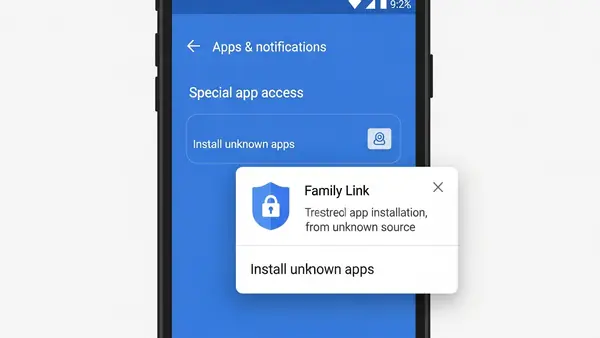
Downloading APK files directly: Kids can download Android app files (APKs) from websites and install them without going through the Play Store, bypassing your approval. Solution: In Family Link, go to Controls > Account settings > toggle off “Allow installation from unknown sources.” This prevents sideloading apps.
Using VPN apps to bypass filters: A VPN can route traffic around Chrome’s content filters. This is why app approval matters—block VPN apps during the approval process unless you specifically want your child to have one (some families use VPNs for legitimate privacy on public Wi-Fi). If you approve a VPN, be aware it undermines content filtering.
Changing the device date/time: Some kids try changing the system clock to bypass bedtime restrictions. Family Link prevents this—the device syncs time from Google’s servers and ignores manual changes. But it’s worth knowing this is a common attempted workaround.
How to Verify Family Link Is Working Correctly
After setup, test these scenarios to confirm everything’s locked down:
Screen time limits: Set a 5-minute daily limit, then use the device for 5 minutes. It should lock and display a “Time’s up” message. You should be able to grant bonus time from your parent app.
App approval: On your child’s device, try to download a new app from the Play Store. You should receive a notification on your parent device asking for approval. Block it and confirm the app doesn’t install.
Content filtering: Open Chrome on your child’s device and search for an inappropriate term (use your judgment here—you’re testing the filter, not traumatizing your kid). SafeSearch should block explicit results. Try accessing a known mature website—it should be blocked with a “Site blocked” message.
Bedtime enforcement: Set bedtime to start in 2 minutes. Wait for the device to lock. Try unlocking it—you should see a bedtime message and the device should remain locked except for emergency calls.
If any of these tests fail, go back through the configuration steps. The most common issue is that the child account wasn’t properly supervised during setup—you’ll need to remove and re-add the account.
What Family Link Doesn’t Do (And What to Add Next)
Family Link is powerful, but it’s not a complete solution. Here’s what it doesn’t cover:
Social media monitoring: Family Link can block social media apps entirely, but it can’t monitor conversations within approved apps like Instagram, Snapchat, or Discord. If your child has these apps, you need a separate conversation about online safety and potentially a third-party monitoring tool like Bark or Qustodio.
Text message monitoring: Family Link doesn’t monitor SMS or MMS messages. If you need visibility into who your child is texting, consider a dedicated parental control app that includes SMS monitoring.
School-issued devices: If your child has a school-issued Chromebook or tablet, it’s managed by the school’s IT department, not Family Link. You’ll need to work with the school to understand what restrictions are already in place.
Wi-Fi network filtering: Family Link filters content on the device, but it doesn’t control your home Wi-Fi network. A tech-savvy kid could use a laptop, game console, or friend’s phone on your Wi-Fi and bypass all device-level restrictions. For network-level filtering, look into DNS-based solutions like OpenDNS or a router with built-in parental controls.
Next Steps: The Family Tech Contract
Technology is only half the solution. The other half is communication. Before you hand over the configured phone, sit down with your child and create a family tech contract. This is a written agreement that covers:
- What apps are allowed and which are off-limits (and why)
- Screen time expectations and consequences for breaking limits
- Privacy boundaries (what you will and won’t monitor)
- What to do if they encounter something scary, inappropriate, or uncomfortable online
- How they can earn more privileges as they demonstrate responsibility
The American Academy of Pediatrics provides a free Family Media Plan tool at HealthyChildren.org that walks you through creating this agreement. Print it out, both of you sign it, and put it somewhere visible (like on the fridge).
Frame Family Link as protection, not punishment. Your goal isn’t to spy on your kid—it’s to give them a safe space to learn digital responsibility before they’re old enough to handle the full internet unsupervised.
Monitoring Your Kid’s Phone: A Trust and Privacy Note
Google Family Link gives you significant visibility into your child’s digital life. You can see every app they use, how long they use it, where they are, and what websites they visit. That’s a lot of power.
Here’s the hard truth: surveillance damages trust. If your child discovers you’ve been reading their messages or tracking their location without telling them, they’ll find ways to hide their activity. They’ll use friends’ phones, create secret accounts, or just stop talking to you about their online life.
The National Center for Missing & Exploited Children recommends transparency: tell your child what you’re monitoring and why. Explain that these tools are in place because the internet has real risks—predators, scams, inappropriate content—and your job as a parent is to help them navigate those risks safely.
As your child gets older and demonstrates good judgment, gradually reduce restrictions. A 10-year-old needs different boundaries than a 16-year-old. The goal is to teach them to make good decisions on their own, not to control them forever.
Related Security Improvements for Family Devices
Once you’ve locked down your child’s Android phone, consider these additional family security steps:
Set up a password manager for your family. Your child needs strong, unique passwords for their accounts, but they’re not going to remember 20 different passwords. A family plan from a service like 1Password or Dashlane gives each family member their own vault with age-appropriate sharing. Best Password Managers for Remote Teams (2026 Review)
Enable two-factor authentication on your child’s Google account. Even though you control the device, their account could still be compromised if someone steals their password. Google supports SMS-based 2FA for child accounts (though not hardware security keys until they turn 18).
Review your home Wi-Fi security. If your router is still using the default admin password, change it. Enable WPA3 encryption if your router supports it. Consider setting up a guest network for your kids’ devices so they’re isolated from your work computers and smart home devices.
Talk to your child about phishing and scams. According to the FBI’s IC3 2025 report, children are increasingly targeted by phishing attacks through gaming platforms and social media. Teach them to recognize suspicious messages and never to share personal information online.
Most importantly: keep the conversation going. Technology changes fast. The app that’s safe today might introduce problematic features tomorrow. Schedule regular check-ins (monthly is good) to review what apps your child is using, what they’re seeing online, and whether the current restrictions still make sense.
You’ve got this. Your kid’s first phone is a big milestone—for both of you. With Family Link configured correctly and an ongoing dialogue about digital safety, you’re setting them up to use technology responsibly.

Tye is a CISSP-certified cybersecurity analyst with over 25 years in IT and 15 years specializing in network defense and threat intelligence. He built PacketMoat to bring enterprise-grade security knowledge to everyday people and small businesses.