
What You’ll Learn (And Why This Matters Right Now)
Your kid just got a new Windows laptop for school, or maybe they’re spending hours on the Xbox while you wonder what they’re actually doing. Microsoft Family Safety is built into Windows 11, Xbox, and Android devices—and it’s completely free. This guide walks you through the entire setup in about 30 minutes.
Here’s what you’ll be able to control by the end of this guide: screen time limits across all their Microsoft devices, web filtering that blocks inappropriate sites, app and game restrictions based on age ratings, real-time location tracking on their phone, and weekly activity reports sent straight to your email. If your family uses Microsoft devices, this is the easiest parental control system to set up because it’s already installed.
Before You Start: What You Need
You need a Microsoft account for yourself (the parent) and a separate Microsoft account for your child. If your kid already has an Xbox account or uses Windows, they probably have one. You’ll also need about 30 minutes of uninterrupted time and physical access to each device you want to control.
Important: Your child must be under 18 in their Microsoft account settings, or Family Safety won’t work. If they created their account years ago and lied about their age (most kids do), you’ll need to fix that first. Microsoft requires identity verification to change a birthdate, which is annoying but prevents kids from just changing it back.
For location tracking, your child needs an Android phone with the Microsoft Family Safety app installed, or a Windows 11 laptop with location services enabled. iPhones aren’t supported for location tracking through Microsoft Family Safety—you’ll need Apple’s Screen Time for that.
Step 1: Create Your Family Group
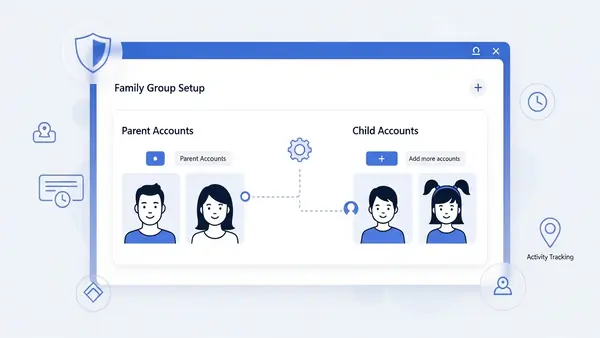
Go to account.microsoft.com/family and sign in with your Microsoft account. Click “Add a family member” and choose “Add a child.” Enter your kid’s email address (their Microsoft account). They’ll get an email invitation that you need to accept on their device.
If your child doesn’t have a Microsoft account yet, click “Create an account for a child” instead. Microsoft will walk you through setting up an account with parental consent. You’ll need to verify your identity with a credit card (they charge and immediately refund $0.50) or a phone number.
Once your child accepts the invitation, they’ll appear in your Family Safety dashboard. This is your control center for everything. Bookmark this page—you’ll be back here often to check activity reports and adjust settings.
Step 2: Set Up Screen Time Limits
Click on your child’s name in the Family Safety dashboard, then click “Screen time.” Here’s where you decide how much time they get on devices each day. You can set different limits for weekdays and weekends, which is useful if you’re stricter during the school week.
Toggle “Use one schedule for all devices” if you want the same limits everywhere, or customize limits per device. For example, you might allow 2 hours on the Xbox but unlimited time on their school laptop (with web filtering still active). The timer counts down across all their Microsoft devices combined unless you customize per device.
Set a schedule for when devices can be used. I recommend blocking devices after 9 PM on school nights—your teenager will argue, but the American Academy of Pediatrics recommends no screens an hour before bed. You can add exceptions for specific apps (like Kindle for reading) that don’t count toward screen time.
Step 3: Configure Web Filtering and Safe Search
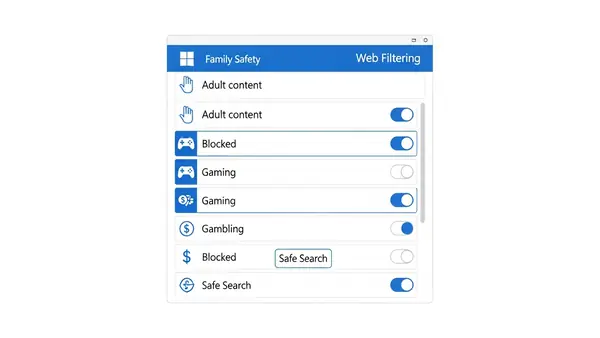
Go back to your child’s profile and click “Content filters.” Toggle on “Filter inappropriate websites and searches.” This enables SafeSearch in Microsoft Edge and Bing, and blocks websites in categories you select: adult content, gambling, violent content, and more.
Scroll down to “Always allowed” and “Always blocked” lists. Add specific websites here. For example, if your kid needs YouTube for school but you don’t want them browsing freely, add youtube.com to “Always allowed” but keep “Adult content” filtering on to catch inappropriate videos.
Here’s the catch: Web filtering only works in Microsoft Edge. If your kid downloads Chrome or Firefox, the filters don’t apply. You need to block other browsers in the next step. On Xbox, web filtering works in the built-in Edge browser, but most kids don’t browse on Xbox anyway—they’re in games and apps.
Step 4: Restrict Apps, Games, and Media by Age Rating
Click “Apps, games & media” in your child’s profile. Set the maximum age rating they can access. For example, if your child is 12, you might set this to “10 and under” to block mature games and apps. This uses the ESRB rating system for games and Microsoft Store age ratings for apps.
Toggle on “Block inappropriate apps and games.” This prevents them from downloading anything above the age rating you set. On Xbox, this is critical—it stops them from playing Mature-rated games at their friend’s house on your account.
Review the list of apps and games they’ve already installed. You can block specific apps even if they’re under the age rating. This is where you block Chrome, Firefox, or any VPN apps they might use to bypass your web filtering. Click the three dots next to any app and select “Block this app.”
Step 5: Enable Location Tracking (Android Only)
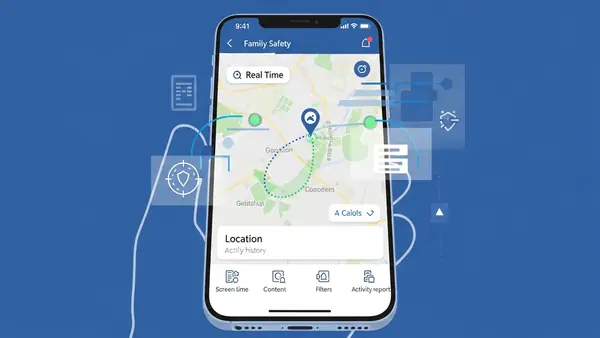
On your child’s Android phone, install the Microsoft Family Safety app from the Google Play Store. Sign in with their Microsoft account (the child account, not yours). The app will request location permissions—tap “Allow all the time” so tracking works even when the app is closed.
On your phone, install the same app and sign in with your parent account. You’ll see your child’s location on a map in real time. Set up location alerts by tapping their name, then “Add a place.” Enter an address (home, school, friend’s house) and you’ll get notifications when they arrive or leave.
Be honest with your kid about this. According to the National Center for Missing & Exploited Children, location tracking is most effective when children know it’s active and understand it’s for their safety, not surveillance. Frame it as “I need to know you got to school safely” rather than “I’m tracking you because I don’t trust you.”
Step 6: Set Up Activity Reporting
Go back to the Family Safety dashboard on your computer and click “Settings” (gear icon in the top right). Toggle on “Activity reporting” and “Weekly email summary.” You’ll get a report every Sunday showing: total screen time per device, websites visited, apps used, search terms in Bing, and location history.
Review the activity feed regularly. Look for patterns: Is your kid spending 4 hours a day on TikTok? Are they searching for things that concern you? The activity feed shows timestamps, so you can see if they’re on devices at 2 AM when they should be asleep.
Don’t weaponize this data. If you see something concerning, have a conversation—don’t immediately punish. “I noticed you searched for X—let’s talk about that” is more effective than “You’re grounded for looking that up.” Monitoring works best as a safety net, not a gotcha tool.
Common Mistakes Parents Make (And How to Avoid Them)
Mistake #1: Not blocking alternative browsers. Your web filtering only works in Microsoft Edge. If your kid downloads Chrome, Firefox, or Brave, they bypass all your filters. Go to “Apps, games & media” and block every browser except Edge. Check the installed apps list on their device—if you see Chrome already installed, block it and uninstall it from their device.
Mistake #2: Setting the same limits for a 7-year-old and a 15-year-old. Microsoft Family Safety lets you add multiple children with different rules for each. Your teenager needs more autonomy than your elementary schooler. A 15-year-old with a 1-hour screen time limit will just find workarounds. Be realistic about what’s enforceable at different ages.
Mistake #3: Forgetting to enable Family Safety on the Xbox. After adding your child to the family group, you need to sign them into the Xbox with their child account—not your parent account. Go to Settings > Account > Family settings on the Xbox and verify their account shows parental controls active. If it says “No restrictions,” they’re signed in with an adult account.
Mistake #4: Not testing the setup with your kid present. After configuration, sit down with your child and show them what’s blocked and why. Try to visit a blocked website together. Show them the screen time timer. Explain how location tracking works. Kids are more likely to respect rules they understand, and you’ll catch configuration mistakes before they become arguments.
Mistake #5: Ignoring VPN apps and proxy sites. Savvy teenagers will Google “how to bypass Microsoft Family Safety” and find VPN apps or web proxy sites (like ProxySite.com) that tunnel around your filters. Block VPN apps in the Apps section. Add known proxy sites to your “Always blocked” list: ProxySite.com, Hide.me, KProxy.com, Whoer.net. You can’t block everything, but blocking the top 10 proxy sites catches most attempts.
How to Verify Everything is Working
Test screen time limits: On your child’s device, check the taskbar (Windows) or home screen (Android) for the Family Safety icon. It should show remaining screen time. Wait until the time expires and verify the device locks. You should see a message: “You’ve reached your screen time limit.”
Test web filtering: Open Microsoft Edge on your child’s device and try to visit a blocked site (use an obvious test like an adult content site or a gambling site—don’t use your real browsing history for this). You should see a blue screen that says “This website is blocked” with your Family Safety logo. If the site loads normally, filtering isn’t active—go back and verify Edge is set as the default browser.
Test app blocking: Try to launch an app you blocked in Step 4. It should either not appear in the app list, or show a message that it’s blocked by Family Safety. On Xbox, try to launch a Mature-rated game—the console should prompt for parent approval.
Test location tracking: Have your child walk around the block with their phone while you watch the Family Safety app on your device. The location should update within 1-2 minutes. If it shows “Location unavailable,” check that location permissions are set to “Allow all the time” on their phone, and that they’re signed into the Family Safety app.
What to Do When Your Kid Finds a Workaround (Because They Will)
Your teenager will eventually discover that Family Safety doesn’t work in Chrome, or they’ll find a friend’s laptop that isn’t monitored, or they’ll figure out how to disable location services. This is normal. The goal isn’t to build an impenetrable fortress—it’s to add friction that makes risky behavior less convenient.
When you catch a bypass attempt, don’t escalate to total lockdown. Have a conversation: “I saw you installed a VPN app. What are you trying to access that’s blocked?” Sometimes kids are bypassing filters for legitimate reasons (blocked YouTube video for school, overly aggressive filter blocking a gaming forum). Adjust your settings if the complaint is valid.
For persistent bypass attempts, consider a family tech contract. Sit down together and write out the rules: what’s allowed, what’s not, what happens if rules are broken. Both of you sign it. This shifts the dynamic from “parent vs. kid” to “we agreed on these rules together.” According to Common Sense Media, families with written tech agreements report fewer conflicts over device use.
Next Steps: Layering Additional Protections
Microsoft Family Safety is a solid foundation, but it’s not a complete solution. Here’s what to add next:
- Router-level filtering: Microsoft Family Safety doesn’t protect devices when they’re at a friend’s house or on cellular data. Set up DNS filtering on your home router (OpenDNS FamilyShield is free) so every device on your Wi-Fi gets basic content filtering, even guest devices. Why You Need a Travel Router for Hotels (2026 Guide)
- Social media platform controls: Family Safety doesn’t monitor what happens inside apps like TikTok, Discord, or Snapchat. Each platform has its own parental controls. Set TikTok to “Restricted Mode,” enable Discord’s “Safe Direct Messaging,” and link your Snapchat account to your child’s via Family Center for activity monitoring.
- Password manager for the family: Your kid needs strong, unique passwords for every account, but they shouldn’t be writing them in a notebook. Set up a family password manager so you can monitor which accounts they’re creating and ensure they’re not reusing passwords. Best Password Managers for Remote Teams (2026 Review)
- Identity theft monitoring: Child identity theft is growing—criminals use kids’ Social Security numbers because the fraud isn’t discovered for years. Consider a family identity monitoring service (Aura Family is popular) that watches for your child’s SSN appearing on the dark web or in credit applications.
- The “phone at night” rule: No parental control software stops the biggest problem: sleep deprivation from late-night device use. Institute a physical rule: phones charge in the kitchen overnight, not in bedrooms. Buy a cheap alarm clock for your kid’s room so “I need it for my alarm” isn’t an excuse.
When Your Teenager Turns 18: The Automatic Shutoff
Microsoft Family Safety automatically disables when your child’s account turns 18 according to their birthdate. You’ll get an email notification 30 days before this happens. All restrictions lift, activity reporting stops, and location tracking ends.
Before this happens, have “the conversation” about adult digital responsibility. Your 18-year-old is about to have unrestricted internet access, probably for the first time. Talk about: protecting their privacy online, recognizing phishing attempts, using strong passwords, and the permanence of social media posts. This is also a good time to introduce them to tools like password managers and two-factor authentication that they’ll need to manage themselves.
If your child is going to college, consider keeping location tracking active with their consent. Frame it as safety, not surveillance: “I won’t check your location daily, but if there’s an emergency, I need to be able to find you.” Many college students voluntarily share location with parents via apps like Life360 because it gives everyone peace of mind.
The Bottom Line: Monitoring is Protection, Not Punishment
Microsoft Family Safety gives you visibility into your child’s digital life without being invasive. The key is using it as a safety tool, not a surveillance weapon. Check activity reports weekly, not hourly. Adjust restrictions as your child matures and earns trust. And most importantly, keep talking—the best parental control is an open conversation about why these rules exist.
Set aside 30 minutes this weekend to walk through this setup. Your kid’s digital safety is worth the time investment, and Microsoft has made this easier than any third-party parental control software. Once it’s configured, the system runs itself—you just review the weekly reports and adjust as needed.

Tye is a CISSP-certified cybersecurity analyst with over 25 years in IT and 15 years specializing in network defense and threat intelligence. He built PacketMoat to bring enterprise-grade security knowledge to everyday people and small businesses.