Ultimate YubiKey Windows 11 Setup: 10-Min Password-Free Login
PacketMoat is reader-supported. When you buy through links on our site, we may earn an affiliate commission at no extra cost to you.
Picture this: You sit down at your PC, tap a small gold key, and instantly you’re logged in. No typing long, complex passwords. No waiting for authentication apps. Just a simple tap and you’re in.
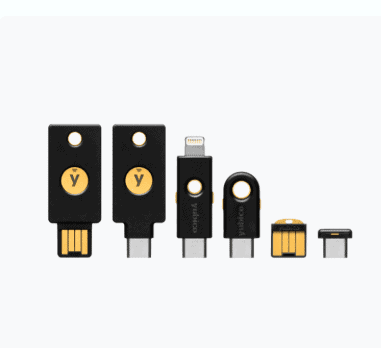
This isn’t science fiction this is YubiKey windows login, and you can set it up in about 10 minutes. If you haven’t bought one yet, you’ll need a YubiKey 5 series device (5 NFC, 5C, 5 Nano, or 5C Nano all work perfectly for this setup).
Why Use a Hardware Key for Login?
Security: Keyloggers can’t steal a physical tap. Even if malware infects your PC, it can’t capture your “password” because there isn’t one to capture.
Speed: Tapping a key is significantly faster than typing Tr0ub4dor&3 every single time.
Cool Factor: Let’s be honest—it just feels incredibly professional and futuristic.
⚠️ The “Danger” Warning (Crucial)
Stop and read this carefully: Before you configure anything, you MUST have a backup plan. If you set this up incorrectly and lose your YubiKey, you could be completely locked out of your own computer.
The Solution: Create a spare local administrator account with a strong password written down and stored safely, OR register a second backup YubiKey. Don’t skip this step—you’ve been warned!
Step 1: Step 1: Download the YubiKey Windows Login Tool
Windows doesn’t handle this natively for local accounts perfectly, so you need the official tool. Head to the Yubico website and download “Yubico Login for Windows”—it’s completely free and officially supported.
This small application bridges the gap between your YubiKey’s capabilities and Windows’ authentication system.
Step 2: Configuration
- Open the “Yubico Login for Windows” configuration tool
- Select your user account from the dropdown
- Insert your YubiKey 5 series device
- Click “Register”
Important choice: The tool will ask if you want “Key + Password” (2FA) or just “Key” (passwordless). For maximum convenience, we’re focusing on passwordless login—just the key tap.
The registration process takes about 30 seconds and creates a unique cryptographic relationship between your specific YubiKey and your Windows account.
Step 3: The Moment of Truth
Time for the big test:
- Reboot your computer
- At the login screen, you won’t see the familiar password box
- Instead, you’ll see “Insert YubiKey” or a similar prompt
- Insert your YubiKey 5 and tap the gold contact
- You’re instantly logged in
That’s it. No passwords, no waiting, no typing. Just tap and go.
Troubleshooting Quick Tips
- Make sure your YubiKey 5 series is properly inserted
- If it doesn’t work, try removing and reinserting the key
- The gold contact area needs a firm, deliberate tap
- Ensure you registered the correct Windows user account
Conclusion
Congratulations! You have successfully set up your yubikey windows login. Your computer is now protected by the same technology used by government agencies and Fortune 500 companies.
Your YubiKey 5 creates an unhackable bridge between you and your digital life. No more forgetting passwords, no more typing complex combinations, and no more vulnerability to remote attacks.
Now that your PC is locked down tighter than Fort Knox, make sure you’re following other security best practices once you’re inside!
Remember: Keep that backup plan ready, and enjoy your new superpower of passwordless computing.

Tye runs PacketMoat. He's a CISSP-certified cybersecurity professional with 25+ years in IT and 12+ in security, including three real-world breach responses at Netskope and CrowdStrike. He also has a 16-year-old — which is why every parental control on this site gets handed to a real teenager to try to bypass before it's recommended.