Should You Forward Gmail to Proton Mail? Pros, Cons, and Gotchas (2026 Guide)
Quick Answer: Forwarding Gmail to Proton Mail gives you Proton’s interface but keeps your emails on Google’s servers first, defeating most privacy benefits. A better approach: use Proton’s Import Assistant to migrate old emails, then redirect new signups to your Proton address while keeping Gmail active for legacy accounts.
This article contains affiliate links. PacketMoat may earn a commission at no extra cost to you when you purchase through these links. This helps support our cybersecurity research and content creation.
You want better email privacy. You signed up for Proton Mail. Now you’re wondering if you should just forward everything from Gmail and call it done.
Not so fast. Gmail forwarding creates a privacy loophole most people miss. Every forwarded email still passes through Google’s servers where it gets scanned, analyzed, and stored before Proton ever sees it.
This guide shows you what actually happens when you forward Gmail to Proton Mail, the security implications, and a smarter migration strategy that preserves your privacy without breaking your existing email workflows.
What Gmail Forwarding Actually Does to Your Privacy
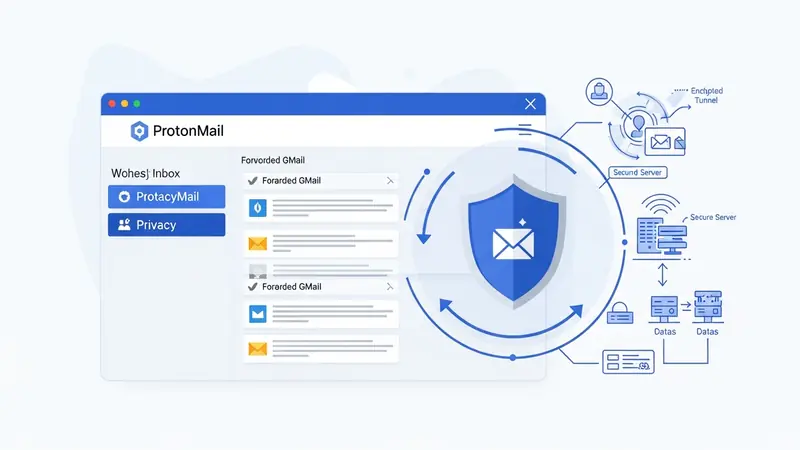
Gmail forwarding sends a copy of each incoming email to your Proton Mail address. Sounds simple. The problem is timing.
Google receives the email first. Their servers scan it for spam filtering, ad targeting data, and compliance monitoring. This happens before forwarding. Your email sits in Gmail’s database whether you delete it from the Gmail interface or not.
Proton Mail uses zero-access encryption. They cannot read your emails even if compelled by court order. But forwarded emails from Gmail arrive already scanned by Google. The encryption happens after Google has already processed the content.
You gain Proton’s encrypted storage and private interface. You lose the main privacy benefit: keeping Google out of your email content entirely.
The Three Gmail Forwarding Methods (and Their Trade-offs)
Gmail offers three ways to forward email. Each has different privacy and reliability implications.
Automatic Forwarding (Settings Method)
This forwards all incoming Gmail to another address. Google requires verification of the destination address to prevent spam abuse.
Privacy impact: Google scans every email before forwarding. Your correspondence patterns, sender relationships, and content all remain visible to Google’s systems.
Reliability: High. Forwarding happens within seconds of receipt. Rarely fails unless Proton’s servers reject the message.
Filter-Based Forwarding
Gmail filters let you forward only specific emails based on sender, subject, or keywords. Useful for gradually migrating specific contacts or services.
Privacy impact: Same as automatic forwarding, but limited to matched emails. Unmatched emails stay only in Gmail.
Reliability: High for matched emails. Easy to misconfigure filters and miss important messages.
POP3 Download to Proton
Proton Mail can fetch emails from Gmail using POP3 protocol. This pulls messages into Proton rather than Gmail pushing them.
Privacy impact: Identical. Google still receives and scans emails first. POP3 just changes who initiates the transfer.
Reliability: Medium. Proton checks Gmail every few hours, not instantly. Delays of 15 minutes to 2 hours are common.
How to Set Up Gmail Forwarding to Proton Mail
If you understand the privacy limitations and still want forwarding for convenience, here’s the setup process.
Step 1: Verify Your Proton Mail Address in Gmail
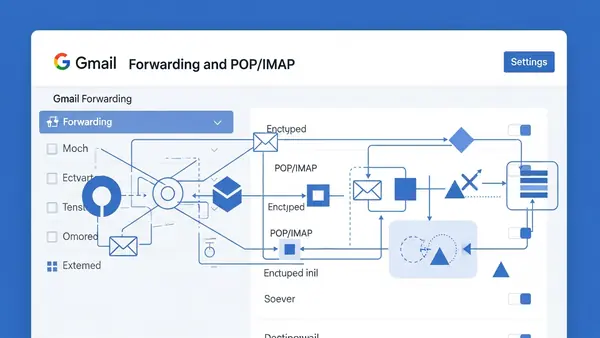
Open Gmail and click the gear icon. Select “See all settings.” Navigate to the “Forwarding and POP/IMAP” tab.
Click “Add a forwarding address.” Enter your Proton Mail address. Gmail sends a confirmation code to that address.
Open Proton Mail. Find the confirmation email from Gmail. Click the verification link or copy the confirmation code.
Return to Gmail settings. Enter the confirmation code if you copied it manually. Click “Verify.”
Step 2: Enable Forwarding
Still in the “Forwarding and POP/IMAP” tab, select “Forward a copy of incoming mail to” and choose your verified Proton address.
Choose what happens to Gmail’s copy. Options include “keep Gmail’s copy in the Inbox,” “mark Gmail’s copy as read,” “archive Gmail’s copy,” or “delete Gmail’s copy.”
Select “archive Gmail’s copy” if you want a backup. Select “delete Gmail’s copy” if you trust Proton as your only storage. Never choose “keep in Inbox” unless you plan to check both accounts.
Click “Save Changes” at the bottom of the settings page.
Step 3: Test the Forwarding
Send a test email to your Gmail address from a different account. Check your Proton Mail inbox within 2 minutes.
The forwarded email appears with your Gmail address in the “To” field. The original sender shows in the “From” field. Reply-to addresses work normally.
If the test email doesn’t arrive in Proton within 5 minutes, check Proton’s spam folder. Gmail sometimes marks forwarded emails as potential spam on the receiving end.
The Gotchas Nobody Mentions
Gmail forwarding creates several problems that surface weeks or months after setup.
Replies Go to the Wrong Address
When you reply to a forwarded email from Proton, the recipient sees your Proton address. Future emails from that sender go directly to Proton, bypassing Gmail entirely.
This sounds good until you have services that only recognize your Gmail address. Password resets, two-factor codes, and account notifications may fail if they validate the receiving email address.
Solution: Use Proton’s custom domain feature to create addresses that match your Gmail username. Costs extra but prevents address mismatch issues.
Gmail’s Forwarding Limits
Google caps automatic forwarding at 10,000 emails per day. Most users never hit this limit. High-volume mailing lists or newsletter subscriptions can trigger it.
When you hit the limit, Gmail stops forwarding until the next day. No notification. No warning. Emails just stop arriving in Proton.
Solution: Unsubscribe from bulk newsletters before enabling forwarding. Re-subscribe using your Proton address.
Forwarding Breaks Some Security Features
Gmail’s automatic forwarding disables if Google detects “suspicious activity” on your account. This includes login attempts from new locations, unusual sending patterns, or spam reports against your address.
Google may also disable forwarding during account recovery processes or security reviews. You receive an email notification, but only to your Gmail address that you might not be checking anymore.
Solution: Keep Gmail’s mobile app installed with notifications enabled. Check it weekly even if you primarily use Proton.
You Cannot Forward Gmail’s Spam Folder
Gmail forwarding only affects emails that reach your inbox. Messages filtered to spam never forward to Proton.
This creates a blind spot. Legitimate emails misclassified as spam by Gmail never reach Proton. You must check Gmail’s spam folder manually to catch these.
Solution: Check Gmail’s spam folder weekly for the first month after enabling forwarding. Mark legitimate emails as “not spam” to train Gmail’s filters.
The Better Alternative: Proton’s Import Assistant
Proton Mail offers an Import Assistant that copies your existing Gmail messages into Proton’s encrypted storage. This is different from forwarding.
Import Assistant downloads your Gmail archive once. Those emails get encrypted with Proton’s zero-access system. Google still has the originals, but future emails bypass Google entirely if you change your address with senders.
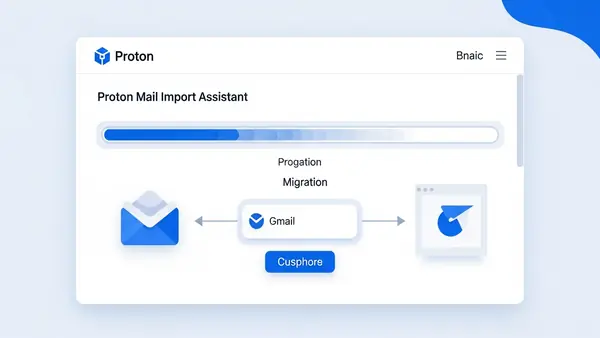
The migration process takes 24 to 72 hours for typical Gmail accounts with 5GB to 15GB of email. Proton’s servers connect to Gmail using OAuth authentication, not your password.
After import completes, update your email address with important services. Banks, password managers, and two-factor authentication systems should point to Proton first. Leave Gmail active for legacy services you forgot about.
This approach gives you a transition period. Old emails remain searchable in Proton. New signups use your Proton address. Gmail catches stragglers for six months while you complete the migration.
When Gmail Forwarding Actually Makes Sense
Forwarding works for specific use cases despite the privacy trade-offs.
You run a business with a Gmail address printed on marketing materials. Changing the address costs thousands in reprinting. Forward to Proton while gradually updating materials.
You have elderly relatives who only know your Gmail address. They struggle with technology changes. Forward to Proton while slowly introducing the new address over family gatherings.
You participate in long-running email threads with dozens of participants. Changing addresses mid-thread confuses people. Forward to Proton until those threads conclude naturally.
You work in an industry with compliance requirements for email retention. Gmail’s forwarding creates an automatic backup system. Proton holds the working copy. Gmail archives everything for legal discovery.
Common Mistakes That Break Gmail Forwarding
Users make predictable errors when setting up Gmail forwarding. Here’s what to avoid.
Deleting the verification email before clicking the link. Gmail’s verification expires after 7 days. You must restart the process if you miss the window.
Enabling forwarding before verifying the Proton address. Gmail requires verification first. The forwarding option stays grayed out until verification completes.
Forgetting to save changes after selecting forwarding options. Gmail’s settings page requires explicit save. Navigating away loses your configuration.
Setting up filters that conflict with forwarding rules. If you create a filter that archives or deletes emails before forwarding triggers, those emails never reach Proton.
Using Proton’s disposable email aliases as the forwarding destination. Gmail rejects forwarding to addresses that look temporary or suspicious. Use your primary Proton address.
How to Verify Gmail Forwarding Works Correctly
Send three test emails to your Gmail address from different external accounts. Use different email providers: Outlook, Yahoo, and a custom domain if you have one.
All three should appear in Proton Mail within 5 minutes. Check the email headers in Proton. Look for “X-Forwarded-For” or “Received” lines mentioning Google’s servers.
Reply to one test email from Proton. Verify the original sender receives your reply. Check what email address they see in the “From” field.
Check Gmail’s sent folder. Forwarded emails do not appear in Gmail’s sent mail. Only emails you compose in Gmail show there.
Wait 24 hours. Send another test email. Verify forwarding still works after the initial setup period. Gmail sometimes delays enforcement of new forwarding rules.
Security Improvements Beyond Email Forwarding
Switching to Proton Mail improves your email privacy. Other changes multiply the benefit.
Enable two-factor authentication on both Gmail and Proton Mail. Use a hardware security key like the YubiKey 5 NFC instead of SMS codes. Hardware keys resist phishing attacks that steal SMS codes.
Use a Best Password Managers for Remote Teams (2026 Review) to generate unique passwords for every service. Password reuse defeats email privacy. Attackers who breach one service gain access to all services sharing that password.
Review your Gmail account’s “Security” settings. Check the “Third-party apps with account access” section. Revoke access for apps you no longer use. Each connected app can read your emails even after you stop using Gmail directly.
Set up Proton’s custom domain feature if you run a business. This costs extra but lets you create professional addresses like yourname@yourbusiness.com that route through Proton’s encrypted system.
Consider Proton’s paid plans for features like custom domains, catch-all addresses, and priority support. The free tier works for personal use. Businesses need the reliability guarantees of paid plans.
What to Do If Forwarding Stops Working
Gmail forwarding fails for several reasons. Here’s how to diagnose and fix them.
Check Gmail’s settings page under “Forwarding and POP/IMAP.” Verify forwarding is still enabled. Google disables it automatically during security reviews or suspicious activity investigations.
Log into Proton Mail and check the spam folder. Gmail sometimes marks forwarded emails as spam on the receiving end. Mark legitimate emails as “not spam” to train Proton’s filters.
Verify your Proton mailbox has not exceeded its storage quota. Free Proton accounts get 500MB. Paid accounts get 15GB or more. Full mailboxes reject incoming emails including forwards.
Check if Google sent security alerts to your Gmail address. Look for emails with subjects like “Forwarding disabled for security reasons” or “Suspicious activity detected.”
Test with a new email to Gmail. If it arrives in Gmail but not Proton, the forwarding rule broke. If it never arrives in Gmail, the problem is upstream with the sender’s mail server.
Re-verify your Proton address in Gmail settings. Sometimes verification expires after months of inactivity. Remove the forwarding address and re-add it with fresh verification.
Frequently Asked Questions
Will forwarding Gmail to Proton Mail delete my old Gmail messages?
No. Gmail forwarding only affects new incoming emails. Your existing Gmail archive remains untouched. Use Proton’s Import Assistant to copy old emails into Proton’s encrypted storage if you want them in one place.
Can I forward multiple Gmail accounts to one Proton Mail address?
Yes. Set up forwarding separately in each Gmail account pointing to the same Proton address. Proton stores all forwarded emails in one inbox. Use Proton’s folder and label features to organize emails from different sources.
Does Gmail forwarding work with Google Workspace business accounts?
It depends on your workspace administrator’s settings. Many businesses disable automatic forwarding to prevent data leaks. Check with your IT department before attempting to forward a work Gmail account to personal Proton Mail.
What happens to emails sent to my Gmail address after I stop using it?
They continue arriving in Gmail unless you set up forwarding or notify senders of your new address. Gmail accounts remain active indefinitely as long as you log in at least once every two years. Inactive accounts get deleted.
Can I use Gmail’s app-specific passwords with Proton Mail’s import feature?
No. Proton’s Import Assistant uses OAuth authentication, not passwords. This is more secure because Proton never sees your Gmail password. You authorize access through Google’s login page, and you can revoke it anytime in your Google account security settings.

Tye runs PacketMoat. He's a CISSP-certified cybersecurity professional with 25+ years in IT and 12+ in security, including three real-world breach responses at Netskope and CrowdStrike. He also has a 16-year-old — which is why every parental control on this site gets handed to a real teenager to try to bypass before it's recommended.