How to Roll Out a Password Manager to a Remote Team (With Templates)
Quick Answer: Rolling out a password manager to a remote team takes 2-3 weeks and follows five steps: choose your platform, audit existing credentials, create migration templates, train users in phases, and enforce the policy. The biggest mistake is rushing deployment without proper training.
What You’ll Learn and Why It Matters
Password reuse is the fastest way to turn one compromised account into a company-wide breach. Your remote team probably shares credentials through Slack, email, or sticky notes. That stops today.
This guide walks you through deploying a password manager to a distributed team. You’ll get tested templates for migration, training, and enforcement. By the end, your team will have unique passwords for every service without memorizing anything.
The process takes 2-3 weeks from selection to full adoption. Rushing it creates resistance. Following this timeline builds habits that stick.
Prerequisites
You need admin access to your company’s current systems. That includes your identity provider, email, and any services where credentials are shared.
Budget 30 minutes per team member for initial setup and training. Add another hour for your IT person to configure policies and integrations.
Choose your password manager before starting. Best Password Managers for Remote Teams (2026 Review) covers the top options for distributed teams. Most businesses pick 1Password, Bitwarden, or Keeper based on budget and compliance needs.
Step 1: Audit Your Current Credential Mess
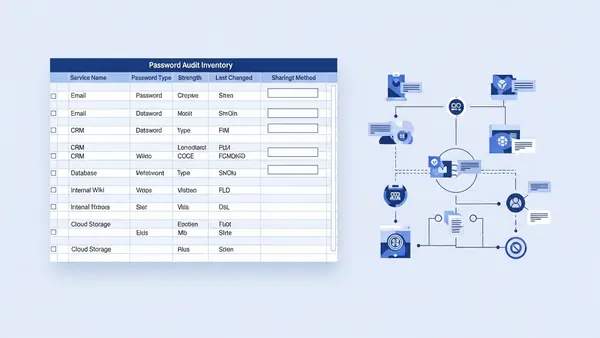
Start by finding where passwords live right now. Check Slack channels for shared logins. Search email for “password” and “credentials.” Ask team leads what they’re sharing through spreadsheets or text files.
Create a simple inventory spreadsheet with these columns:
- Service name
- Who needs access
- Current sharing method
- Business criticality (high/medium/low)
This audit reveals two things. First, you’ll find credentials you forgot existed. Second, you’ll identify which services need immediate migration versus which can wait.
Flag any credentials stored in plain text Slack messages or emails. Those migrate first. They’re already compromised if someone’s laptop gets stolen or their email gets hacked.
Step 2: Configure Your Password Manager for Team Use
Set up your password manager’s business account with these baseline policies:
- Require master passwords of at least 16 characters
- Enable two-factor authentication for all users
- Set session timeout to 15 minutes of inactivity
- Disable password hints (they’re security theater)
Create your vault structure before adding users. Most teams use this hierarchy:
- Shared vaults by department (Marketing, Sales, Engineering)
- Project-specific vaults for contractors or temporary access
- Executive vault for sensitive accounts
- Individual vaults for personal work accounts
Set permissions now. Marketing doesn’t need access to payroll credentials. Sales doesn’t need server root passwords. Least privilege applies to password vaults too.
Install the browser extension and desktop app on your own machine first. Test the workflow you’ll teach others. If you can’t figure it out, your team won’t either.
Step 3: Create Your Migration Templates
Build three templates that make migration brainless for your team.
Template 1: New Service Checklist
When someone signs up for a new tool, they follow this:
- Open password manager before visiting the signup page
- Use the generator to create a 20-character random password
- Save the entry with service name, URL, and username
- Add the service to the appropriate shared vault
- Document who needs access in the vault notes
Template 2: Existing Service Migration
For accounts that already exist:
- Log into the service with the old password
- Navigate to password change settings
- Generate a new 20-character password in the password manager
- Update the password in the service
- Save the new credentials to the correct vault
- Delete the old password from wherever it was stored
- Notify anyone who had the old password
Template 3: Shared Account Handoff
When transferring access between team members:
- Share the vault item (never send the password)
- Confirm the recipient can log in
- Remove the previous user’s access
- Update the vault notes with the new owner
Put these templates in your team wiki or knowledge base. Link to them from your password manager onboarding doc.
Step 4: Train Users in Phases
Don’t deploy to everyone at once. Start with a pilot group of 3-5 tech-savvy users who can become your internal champions.
Week 1: Pilot Group
Schedule 30-minute sessions with each pilot user. Screen share and walk through:
- Installing the browser extension and desktop app
- Creating their master password (make them write it down physically)
- Setting up two-factor authentication
- Saving their first three passwords
- Accessing a shared vault
Give them homework: migrate five personal work accounts by end of week. Collect their feedback on what confused them. Fix those gaps before the next phase.
Week 2: Department Rollout
Deploy to one department at a time. Send a pre-meeting email with:
- Why you’re doing this (frame it as protecting them, not surveillance)
- What they need to do before the training call
- When their accounts will be provisioned
Run 45-minute group training sessions. Keep groups under 10 people so you can answer questions. Record the session for people who miss it.
Cover the same workflow as the pilot, but add department-specific examples. Show the marketing team how to share social media credentials. Show engineering how to store API keys.
Week 3: Company-Wide
Deploy to remaining users. By now you’ve refined your training and fixed common issues. This phase goes faster.
Create a Slack channel for password manager questions. Your pilot users can help answer basic questions. This takes pressure off IT.
Step 5: Enforce the Policy
Training without enforcement fails. Set a cutoff date two weeks after company-wide deployment. After that date:
- Rotate all shared credentials not in the password manager
- Delete password spreadsheets and documents
- Block credential sharing through Slack and email
Add password manager usage to your onboarding checklist. New hires set up their account on day one, before they get access to anything else.
Run monthly audits of shared vaults. Look for:
- Weak passwords (under 16 characters or dictionary words)
- Reused passwords across services
- Credentials that haven’t been rotated in 90+ days
- Former employees still with access
Most business password managers include reporting for this. Use it.
Common Mistakes to Avoid
Skipping the master password backup. When someone forgets their master password, they lose everything. Require users to write it down and store it somewhere physical and secure. A safe at home works. A sticky note on their monitor does not.
Not testing the recovery process. Before you deploy, simulate a user getting locked out. Walk through account recovery with your password manager’s support. Know how long it takes and what information you need.
Allowing password hints. Hints are just weak passwords with extra steps. Disable them in your admin settings. Users either remember their master password or go through proper recovery.
Migrating everything at once. Start with low-risk accounts. Let users build confidence before moving critical credentials. The company bank account can wait until week three.
Forgetting mobile devices. Your team works from phones and tablets. Include mobile app setup in training. Test autofill on both iOS and Android before rollout.
Not integrating with SSO. If you use single sign-on for some services, configure your password manager to work alongside it. They complement each other. SSO for apps that support it, password manager for everything else.
Verification: How to Confirm It Worked
Check these metrics four weeks after deployment:
Adoption rate: 90% of users should have active accounts and at least 10 saved passwords. Check your admin dashboard for login activity.
Shared credential elimination: Search Slack and email for password sharing. You should find zero instances from the past two weeks.
Password strength: Run the built-in security audit. Average password length should be 18+ characters. Reuse should be under 5%.
Support tickets: Password reset requests should drop by 60-80%. Users reset their own passwords through the manager instead of calling IT.
Survey your team anonymously. Ask two questions: “Do you use the password manager daily?” and “What would make it easier?” The first tells you adoption. The second tells you where to improve.
Next Steps and Related Security Improvements
Your team now has unique passwords for every service. Build on that foundation with these improvements:
Add hardware security keys. Password managers protect credentials, but phishing can still steal session tokens. Phishing-Proof Your Remote Team: Why the YubiKey 5 NFC is Mandatory for SMB Security (2026 ROI Guide) explains how hardware keys block that attack. Deploy them to executives and anyone with financial access first.
Eliminate SMS two-factor authentication. Text message codes are better than nothing, but authenticator apps are better than SMS. SMS vs MFA: Why I Stopped Using Text Messages for 2FA in (2026) covers why and how to migrate.
Rotate critical credentials quarterly. Set calendar reminders to change passwords for your most sensitive accounts every 90 days. Bank accounts, payroll systems, and domain registrars go on this list.
Document your emergency access procedure. What happens if your IT admin gets hit by a bus? Establish a process for emergency credential access that doesn’t compromise security. Most password managers offer emergency access features.
Train on phishing recognition. Strong passwords don’t help if users hand them to attackers. Run quarterly phishing simulations and training. Make it practical, not punitive.
Frequently Asked Questions
What if someone forgets their master password?
They’re locked out permanently unless you configured account recovery during setup. Most business password managers offer admin recovery or emergency access features. Set these up before deployment, not after someone gets locked out. The recovery process typically takes 24-48 hours and requires admin approval.
Do I need a password manager if we already use single sign-on?
Yes. SSO only works for services that support it. You still have dozens of accounts that don’t integrate with your identity provider. Use SSO where possible and a password manager for everything else. They work together, not as replacements.
How often should I audit shared vault access?
Monthly for the first quarter, then quarterly after that. Check for former employees still with access, credentials shared too broadly, and weak passwords. Most business password managers generate these reports automatically. Review them the first Monday of each month.
What happens to passwords when someone leaves the company?
Remove their account immediately on their last day. Then rotate every password in shared vaults they accessed. Yes, this is tedious. No, there’s no shortcut. Use your offboarding checklist to make sure it happens every time.
Can I require my team to use the password manager for personal accounts too?
No. You can encourage it and you should. But requiring it for personal accounts crosses a privacy line. Focus on work accounts and lead by example. Most users adopt it for personal use once they see how much easier it makes their lives.

Tye runs PacketMoat. He's a CISSP-certified cybersecurity professional with 25+ years in IT and 12+ in security, including three real-world breach responses at Netskope and CrowdStrike. He also has a 16-year-old — which is why every parental control on this site gets handed to a real teenager to try to bypass before it's recommended.